YOUR MYSALE.PK HANDBOOK

Everything you need to
run your store better.

A practical, step-by-step guide to setting up your store, managing products, recording purchases, making sales, tracking payments, and understanding your business reports.

اپنی دکان سیٹ اپ کرنے، مصنوعات اور اسٹاک سنبھالنے، خریداری و فروخت درج کرنے، ادائیگیوں کا حساب رکھنے اور کاروباری رپورٹس سمجھنے کے لیے مرحلہ وار رہنمائی۔

✓ Beginner-friendly instructions · ✓ Desktop & mobile friendly
MYSALE.PK · DASHBOARD PREVIEW
Add your own MySale.pk image اپنی MySale.pk تصویر یہاں شامل کریں assets/images/dashboard.jpeg
MySale.pk Dashboard

Set up MySale.pk the right way

Complete these basics before you start entering real transactions.

مائی سیل ڈاٹ پی کے کو درست طریقے سے سیٹ اپ کریں — حقیقی ٹرانزیکشن درج کرنے سے پہلے بنیادی سیٹ اپ مکمل کریں۔

01
!
Important

Choose your base currency and tax rules before recording live purchases and sales. Changing settings later does not necessarily rewrite or correct historic transactions.

Your complete guide, at a glance

Jump straight to the task you need to complete.

مکمل گائیڈ ایک نظر میں — جس کام کی ضرورت ہو، وہاں براہِ راست جائیں۔

02
ENGLISH

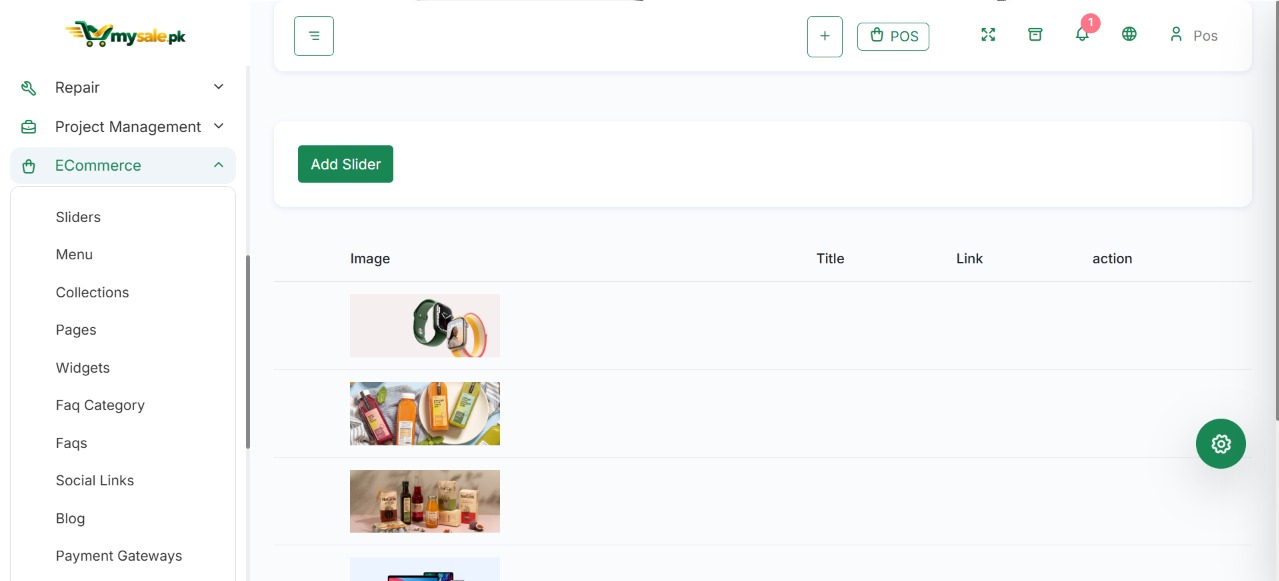
1. Login and account safety

اردو

لاگ اِن اور اکاؤنٹ کی حفاظت

اپنے اسٹور میں محفوظ طریقے سے داخل ہوں اور کاروباری معلومات کی حفاظت کریں۔

01
ENGLISH GUIDEاردو رہنمائی

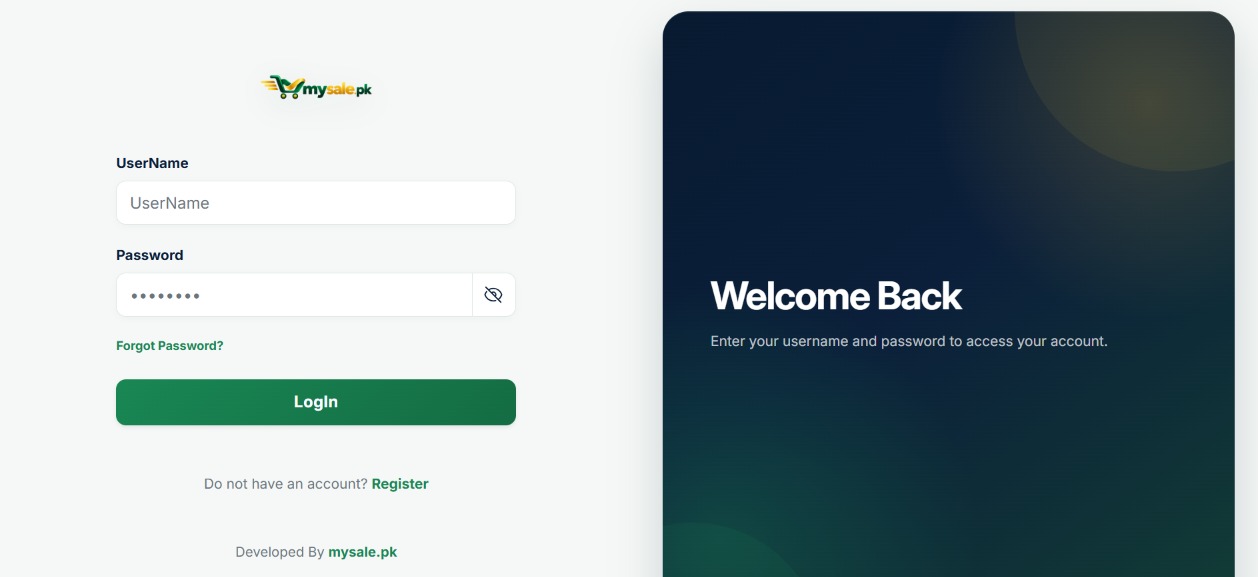
Sign in

  1. Open your official your site linke link pos.mySale.pk store login URL.
  2. username associated with your user account.
  3. Enter your password and select Login.
  4. Confirm the correct business, store, or account is open before processing transactions.

If you cannot log in

  • Check spelling, keyboard Caps Lock, and the correct login URL.
  • Use the password-reset option if your screen provides one.
  • Ask your account administrator to confirm your account is active and assigned a role.
  • If the page shows a server error, save the exact message and contact support. mysale.pk trhen send mail on infomysalepk@gmail.com

Keep your account secure

  • Use a unique, strong password and never share it in a public chat.
  • Create individual accounts for staff instead of sharing one administrator login.
  • Sign out on shared or public computers.
  • Grant staff only the access required for their job.
  • Share temporary access with support only through an approved private channel, then revoke or change it when the issue is resolved.
Tip

If a colleague leaves the business, disable their access promptly and review any shared credentials.

سائن اِن کرنے کا طریقہ

  1. اپنے MySale.pk اسٹور کا آفیشل لاگ اِن لنک کھولیں۔
  2. اپنے صارف اکاؤنٹ سے منسلک ای میل یا یوزر نیم درج کریں۔
  3. پاس ورڈ درج کرکے Login منتخب کریں۔
  4. سیل یا خریداری شروع کرنے سے پہلے تصدیق کریں کہ درست کاروبار اور اسٹور کھلا ہے۔

لاگ اِن نہ ہو تو

  • یوزر نیم، ہجے، کی بورڈ کے Caps Lock اور لاگ اِن لنک کو دوبارہ چیک کریں۔
  • اگر اسکرین پر پاس ورڈ ری سیٹ کا اختیار موجود ہو تو اسے استعمال کریں۔
  • ایڈمن سے تصدیق کروائیں کہ اکاؤنٹ فعال ہے اور درست کردار تفویض ہے۔
  • سرور کی خرابی آئے تو مکمل پیغام محفوظ کریں اور سپورٹ سے رابطہ کریں۔

اکاؤنٹ محفوظ رکھیں

  • مضبوط اور منفرد پاس ورڈ استعمال کریں؛ اسے عوامی چیٹ میں نہ بھیجیں۔
  • ہر ملازم کے لیے الگ اکاؤنٹ بنائیں؛ ایک ایڈمن لاگ اِن سب کے ساتھ شیئر نہ کریں۔
  • مشترکہ کمپیوٹر استعمال کرنے کے بعد لاگ آؤٹ کریں۔
  • عملے کو صرف ان کے کام کے مطابق اجازتیں دیں۔
  • مسئلہ حل ہونے پر عارضی سپورٹ رسائی ختم یا تبدیل کردیں۔
▧Login screen screenshotIncluded MySale.pk screenshot
MySale.pk login screen
Screenshot 01 · MySale.pk login screen.
ENGLISH

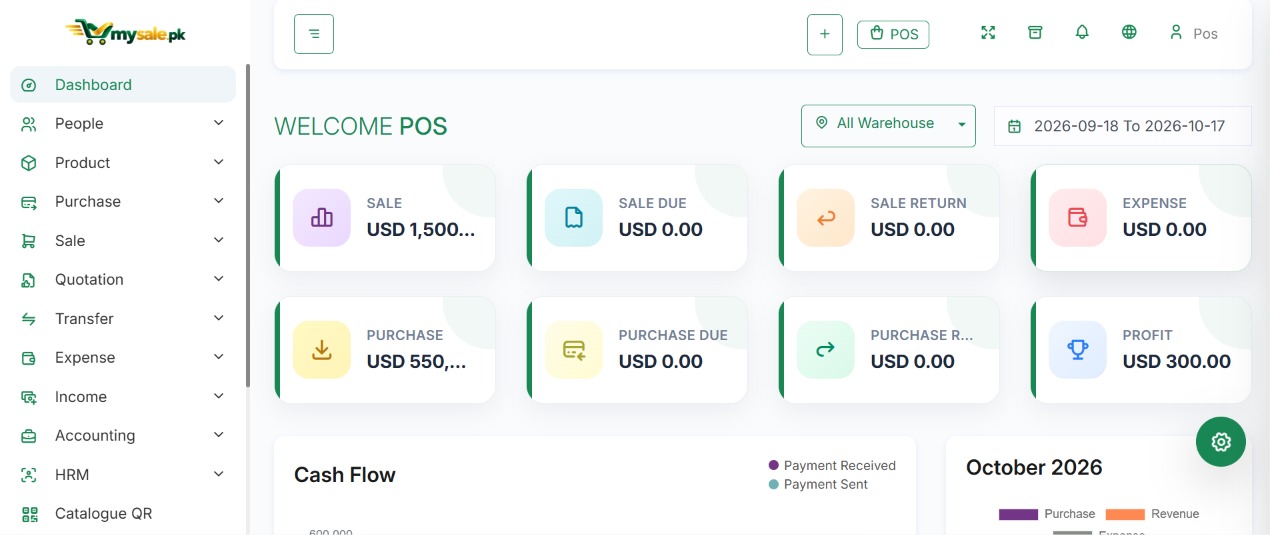
2. Understand the dashboard

اردو

ڈیش بورڈ کو سمجھیں

ڈیش بورڈ کاروبار کی روزمرہ سرگرمیوں کا فوری خلاصہ دکھاتا ہے۔

02
ENGLISH GUIDEاردو رہنمائی

Depending on your account and enabled modules, the dashboard may show sales totals, purchase totals, payment summaries, stock alerts, charts, recent activity, or quick links. Dashboard cards are a summary, not a replacement for checking the detailed record or report.

▥Sales summary

Review sales activity for the selected period, then open the sales report to verify individual records.

▣Stock indicators

Use low-stock or expiry alerts as a prompt to inspect the exact product and warehouse.

◈Financial overview

Check payments, customer dues, supplier balances, or cash and bank totals where available.

How to use the dashboard each day

  1. Check the date range and active warehouse or location filters.
  2. Review pending items, stock warnings, and recent activity.
  3. Open the detailed report when a number looks unexpected.
  4. Record the issue and relevant transaction reference before making a correction.

روزانہ ڈیش بورڈ استعمال کرنے کا طریقہ

  1. سب سے پہلے تاریخ کی حد اور منتخب گودام یا برانچ کے فلٹر چیک کریں۔
  2. زیرِ التوا کام، کم اسٹاک کی تنبیہات اور حالیہ سرگرمیاں دیکھیں۔
  3. کوئی رقم غیر متوقع ہو تو متعلقہ تفصیلی رپورٹ کھولیں۔
  4. درستگی کرنے سے پہلے مسئلے اور متعلقہ ٹرانزیکشن نمبر کو نوٹ کریں۔

عام معلومات

  • اکاؤنٹ اور فعال ماڈیولز کے مطابق سیلز، خریداری، ادائیگیوں، اسٹاک اور مالی خلاصے دکھائی دے سکتے ہیں۔
  • ڈیش بورڈ کے نمبرز خلاصہ ہوتے ہیں؛ حتمی تصدیق کے لیے اصل ریکارڈ یا رپورٹ کھولیں۔
▦Dashboard overview screenshotIncluded MySale.pk screenshot
MySale.pk dashboard overview
Screenshot 02 · MySale.pk dashboard overview.
ENGLISH

3. Business settings

Set business identity and operating defaults before recording transactions.

اردو

کاروباری ترتیبات

حقیقی ٹرانزیکشن درج کرنے سے پہلے کاروبار کی بنیادی معلومات اور نظام کے ڈیفالٹ درست کریں۔

03
ENGLISH GUIDEاردو رہنمائی

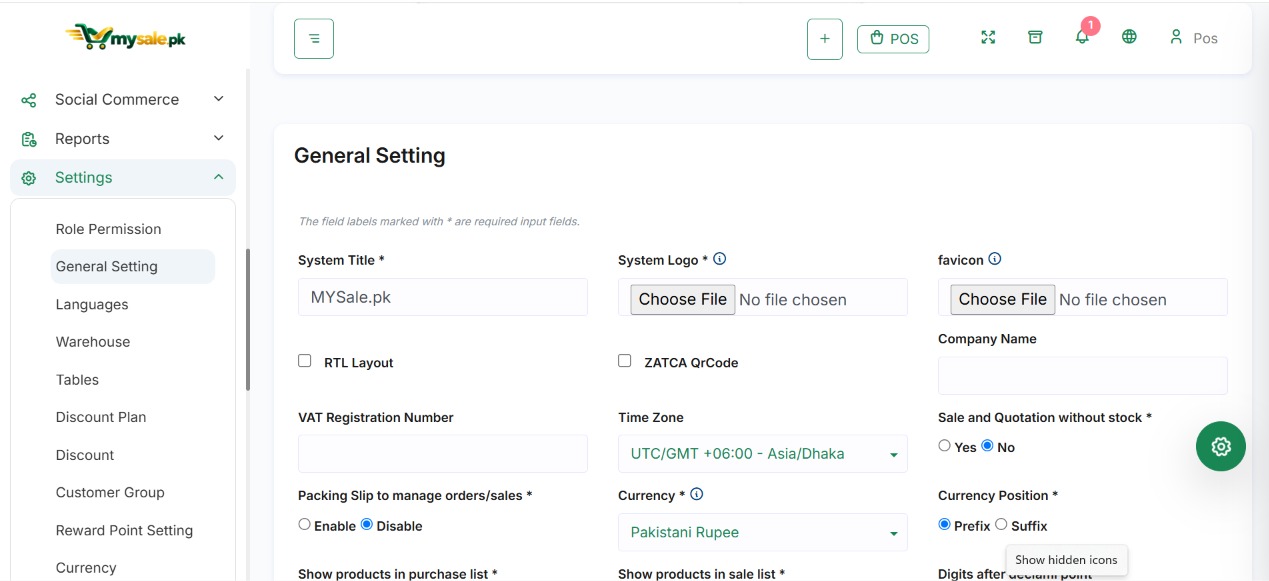
Open the Settings area and look for business or general settings. Menu labels can vary by release and user permissions.

SettingWhat to checkWhy it matters
Business profileBusiness name, address, phone, email, logoAppears in customer-facing documents where configured.
Locale & timeTimezone, date format, number precisionHelps dates and amounts display consistently.
DocumentsInvoice prefix, footer, paper/receipt layoutKeeps invoices and receipts identifiable.
CommunicationEmail or messaging settings, if usedSupports configured notifications and document sharing.
Business defaultsCurrency, tax and payment account choicesUsed by later sales, purchases and reports.

Recommended order

  1. Confirm business information and the correct time zone.
  2. Choose a base currency before entering live activity.
  3. Configure taxes and payment accounts.
  4. Review invoice and receipt layouts.
  5. Save, reload the screen, and verify the settings persisted.
!
Don't use settings to fix history

If a past sale or purchase is wrong, use the supported edit, return, refund, or reversal process. Changing the current business default may not recalculate historical records.

ترتیبات کی تجویز کردہ ترتیب

  1. کاروبار کا نام، پتہ، رابطہ معلومات اور ٹائم زون درست کریں۔
  2. حقیقی خرید و فروخت شروع کرنے سے پہلے بنیادی کرنسی منتخب کریں۔
  3. ٹیکس کی شرحیں اور ادائیگی اکاؤنٹس سیٹ کریں۔
  4. انوائس اور رسید کا لے آؤٹ چیک کریں۔
  5. ترتیبات محفوظ کریں، صفحہ دوبارہ کھولیں اور تصدیق کریں کہ تبدیلیاں برقرار ہیں۔

کن چیزوں پر توجہ دیں

  • تاریخ اور نمبر فارمیٹ، ٹیکس، کرنسی، لوگو اور رسید کی معلومات کاروبار کے مطابق ہونی چاہییں۔
  • اہم ترتیبات تبدیل کرنے سے پہلے اثرات سمجھیں؛ تبدیلیاں پرانی ٹرانزیکشنز کو خودکار طور پر درست نہیں کرتیں۔
⚙Business settings screenshotIncluded MySale.pk screenshot
MySale.pk business settings
Screenshot 03 · MySale.pk business settings.
ENGLISH

4. Currency, taxes and payment methods

اردو

کرنسی، ٹیکس اور ادائیگی کے طریقے

درست کرنسی، ٹیکس اور ادائیگی اکاؤنٹ منتخب کریں تاکہ ٹرانزیکشن اور رپورٹ میں صحیح رقم آئے۔

04
ENGLISH GUIDEاردو رہنمائی

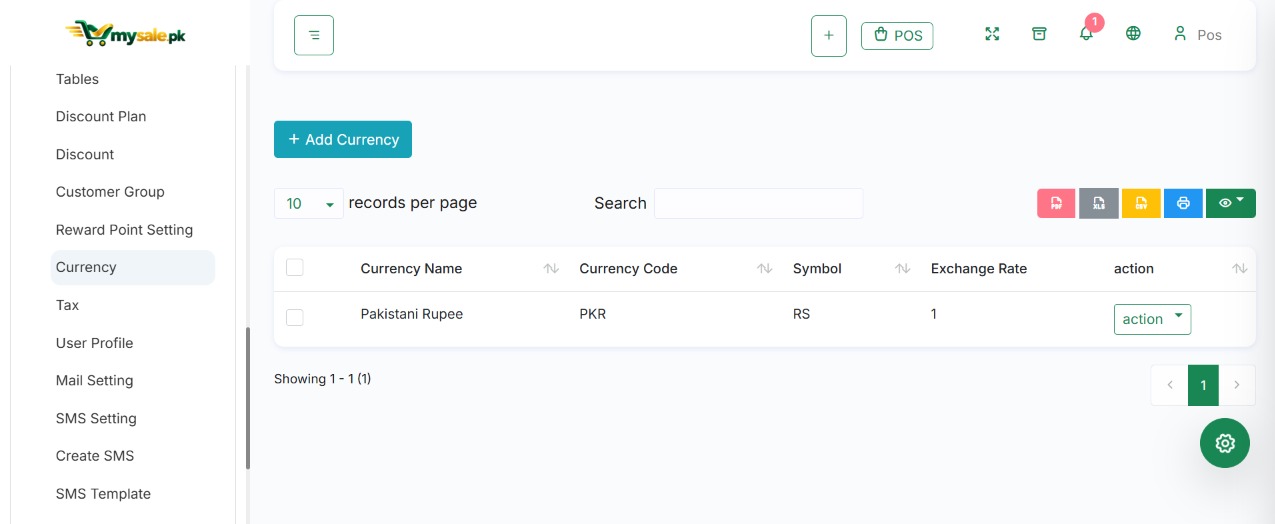
Add or select a currency

  1. Open Settings, then find Currency or the equivalent currency list.
  2. Choose Add Currency if the currency is not listed.
  3. Enter the currency name/code and the required rate fields.
  4. Save and verify the currency is active and appears in the list.
  5. When recording a transaction, select the correct currency and confirm the displayed rate and total.
i
Exchange rate reminder

In the documented Mysale.pk workflow, the base currency rate is 1. Foreign-currency transactions require a positive saved rate. Do not guess a historical exchange rate: use the rate that applies to the transaction and confirm your version's rules.

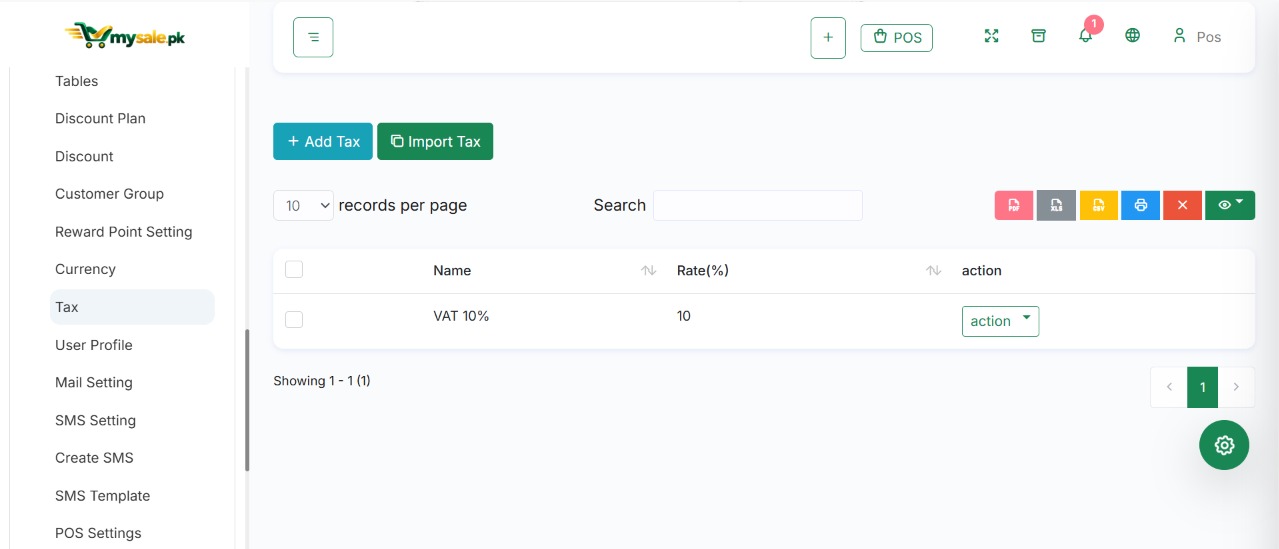
Taxes

  1. Open the tax settings or tax-rate list.
  2. Create each tax rate required for your business and jurisdiction.
  3. Confirm whether it is a percentage or fixed amount and whether it applies to the intended products or transactions.
  4. Apply the tax to relevant products or sales/purchases, depending on your configuration.
  5. Test with a sample transaction and verify the line tax, total, invoice, and report.

Payment methods versus payment accounts

A payment method describes how the customer paid (for example, cash, card, bank transfer, or an online provider). A payment account identifies where the received money is recorded. Configure both concepts where the system asks for them.

  • Use the actual provider and account configured for your business.
  • Do not treat a browser message as proof that an online payment settled; verify the provider transaction and reconciliation record.
  • For cash and bank accounts, check the correct account is selected before posting.

کرنسی شامل یا منتخب کریں

  • Settings کھولیں اور Currency یا کرنسی کی فہرست تلاش کریں۔
  • کرنسی موجود نہ ہو تو Add Currency منتخب کریں۔
  • کرنسی کا نام، کوڈ اور مطلوبہ ریٹ درج کریں۔
  • محفوظ کرکے تصدیق کریں کہ کرنسی فعال اور فہرست میں موجود ہے۔
  • ٹرانزیکشن کے دوران درست کرنسی اور شرح منتخب کرکے کل رقم چیک کریں۔

ٹیکس ترتیب دیں

  1. Tax Settings یا Tax Rate کی فہرست کھولیں۔
  2. اپنے کاروبار اور متعلقہ علاقے کے مطابق ٹیکس بنائیں۔
  3. چیک کریں کہ ٹیکس فیصد ہے یا مقررہ رقم اور کن آئٹمز پر لاگو ہوگا۔
  4. ضرورت کے مطابق ٹیکس کو پروڈکٹ، سیل یا خریداری سے منسلک کریں۔
  5. ایک ٹیسٹ ٹرانزیکشن کرکے لائن ٹیکس، کل رقم، انوائس اور رپورٹ کی تصدیق کریں۔

Payment Method اور Payment Account میں فرق

  • Payment Method بتاتا ہے کہ رقم کیسے وصول ہوئی، مثلاً نقد، کارڈ یا بینک ٹرانسفر۔
  • Payment Account یہ بتاتا ہے کہ وصول شدہ رقم کس کیش یا بینک اکاؤنٹ میں درج ہوگی۔
  • آن لائن ادائیگی کو صرف براؤزر کے پیغام سے کامیاب نہ سمجھیں؛ فراہم کنندہ کی ٹرانزیکشن بھی چیک کریں۔
$Currency settings screenshotIncluded MySale.pk screenshot
MySale.pk currency settings
Screenshot 04 · MySale.pk currency settings. Related tax-settings screenshot follows.
▧Tax settings screenshotIncluded MySale.pk screenshot
MySale.pk tax settings
Related screenshot · Tax settings
ENGLISH

5. Users, roles and permissions

Match staff access to each role’s responsibilities.

اردو

صارفین، کردار اور اجازتیں

ہر ملازم کو صرف وہ رسائی دیں جو اس کے کام کے لیے ضروری ہے۔

05
ENGLISH GUIDEاردو رہنمائی

Create a role first

  1. Open the user, role, or permissions area in Settings.
  2. Create a role such as Cashier, Inventory Staff, Purchasing Staff, or Manager.
  3. Start with view permissions and add create, edit, delete, payment, export, or reporting permissions only as required.
  4. Enable access to optional modules only for staff who need them.
  5. Save the role and then create or edit the user's account.

Create a staff user

  1. Open Users and choose Add User (or the available equivalent).
  2. Enter the person's name, login/email, and other required details.
  3. Assign the correct role and, when applicable, a warehouse or branch.
  4. Save and test the account with the staff member's actual login.
Example roleTypical access to considerKeep restricted
CashierPOS, permitted sales, receipt printingCost editing, user administration, accounting configuration
Inventory staffProducts, stock counts and approved transfersPayments, payroll, system settings
Purchasing staffSuppliers, purchase creation and receivingDeleting posted history, broad finance access
ManagerOperational reports and approved correctionsSystem-wide control unless required

Always test the role. Check the menu, the actions available on a page, and warehouse restrictions. Hiding a menu item alone is not a substitute for server-side permission controls.

پہلے کردار (Role) بنائیں

  1. Settings میں Users، Roles یا Permissions کا حصہ کھولیں۔
  2. Cashier، Inventory Staff، Purchasing Staff یا Manager جیسا کردار بنائیں۔
  3. پہلے دیکھنے کی اجازت دیں؛ ضرورت کے مطابق Add، Edit، Delete، Payment، Export یا Reports کی اجازت شامل کریں۔
  4. اختیاری ماڈیول صرف متعلقہ ملازمین کے لیے فعال کریں۔
  5. کردار محفوظ کرکے صارف کا اکاؤنٹ بنائیں یا اس میں کردار منتخب کریں۔

ملازم کا اکاؤنٹ بنائیں

  1. Users میں جاکر Add User منتخب کریں۔
  2. نام، لاگ اِن/ای میل اور مطلوبہ معلومات درج کریں۔
  3. درست Role اور ضرورت کے مطابق Warehouse یا Branch تفویض کریں۔
  4. محفوظ کرنے کے بعد ملازم کے لاگ اِن سے اکاؤنٹ ٹیسٹ کریں۔
  5. مینو کے ساتھ اصل کارروائیوں اور گودام کی پابندیوں کو بھی چیک کریں۔
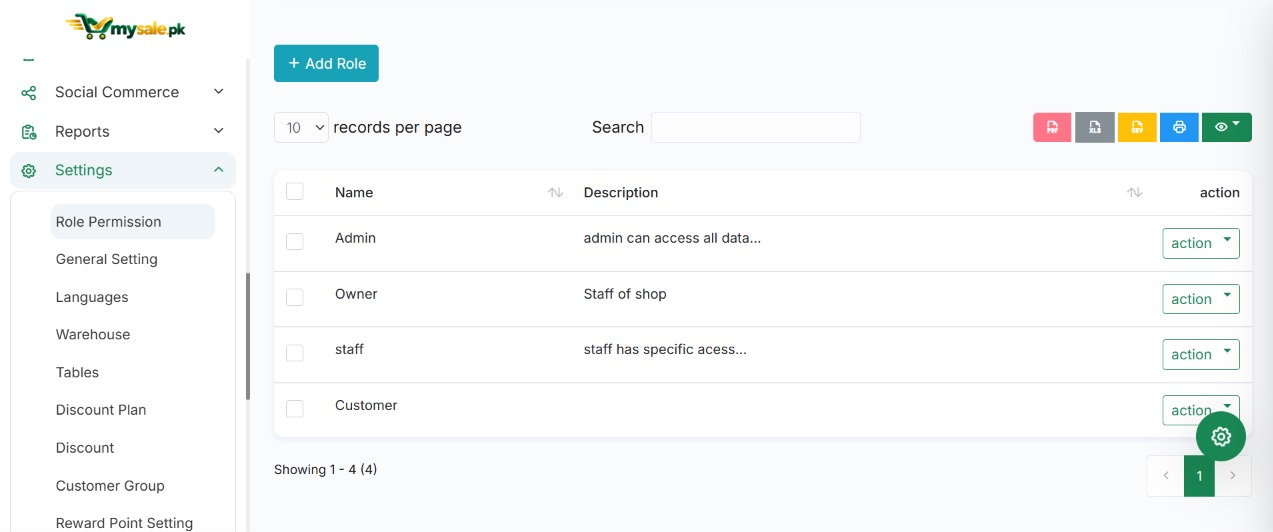
♙Users and permissions screenshotIncluded MySale.pk screenshot
MySale.pk roles and permissions
Screenshot 05 · MySale.pk roles and permissions. Related user-management screenshot follows.
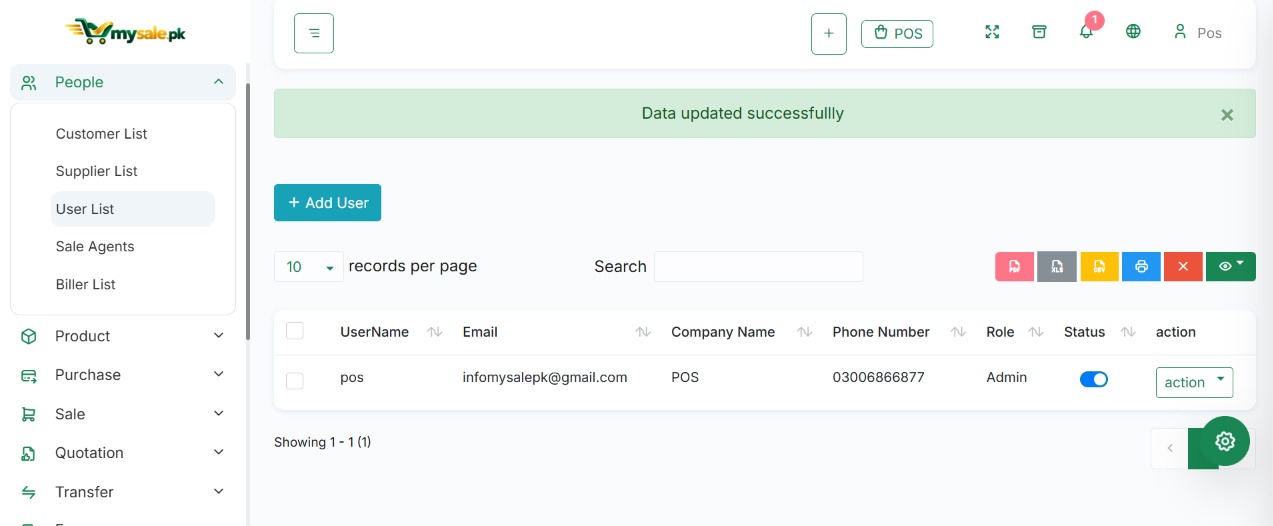
▧User management screenshotIncluded MySale.pk screenshot
MySale.pk user management
Related screenshot · User management
ENGLISH

6. Warehouses and branches

اردو

گودام اور برانچیں

اسٹاک کی جگہ اور ہر برانچ میں صارفین کی رسائی الگ سے کنٹرول کریں۔

06
ENGLISH GUIDEاردو رہنمائی

Stock is often tracked by warehouse, not just by company-wide product totals. The warehouse selected on a purchase, sale, count, or transfer can determine which inventory is used.

Create a warehouse

  1. Open Settings → Warehouse or the matching location menu.
  2. Select Add Warehouse.
  3. Enter a clear name and the required contact or address information.
  4. Save, then assign user access if your system supports warehouse-level restrictions.
  5. Confirm the warehouse is selectable on the transaction forms where it should be used.

Before posting a transaction

  • Check that you selected the correct source or receiving warehouse.
  • Confirm stock is available in that warehouse, not only at another branch.
  • For tracked stock, select the right batch, variant, IMEI or serial number.
  • After a transfer, verify both the sending and receiving warehouse ledgers.

گودام بنائیں

  1. Settings → Warehouse یا متعلقہ لوکیشن مینو کھولیں۔
  2. Add Warehouse منتخب کریں۔
  3. گودام کا واضح نام اور مطلوبہ پتہ یا رابطہ معلومات درج کریں۔
  4. محفوظ کریں اور اگر دستیاب ہو تو صارفین کو گودام کی رسائی دیں۔
  5. خریداری، فروخت اور ٹرانسفر کی اسکرین پر گودام منتخب کرکے دیکھیں۔

ٹرانزیکشن سے پہلے

  1. درست بھیجنے والا یا وصول کرنے والا گودام منتخب کریں۔
  2. تصدیق کریں کہ اسٹاک اسی گودام میں موجود ہے؛ صرف دوسری برانچ کا اسٹاک کافی نہیں۔
  3. Tracked پروڈکٹ کے لیے صحیح بیچ، ویرینٹ، IMEI یا سیریل نمبر منتخب کریں۔
  4. ٹرانسفر کے بعد دونوں گوداموں کے اسٹاک ریکارڈ چیک کریں۔
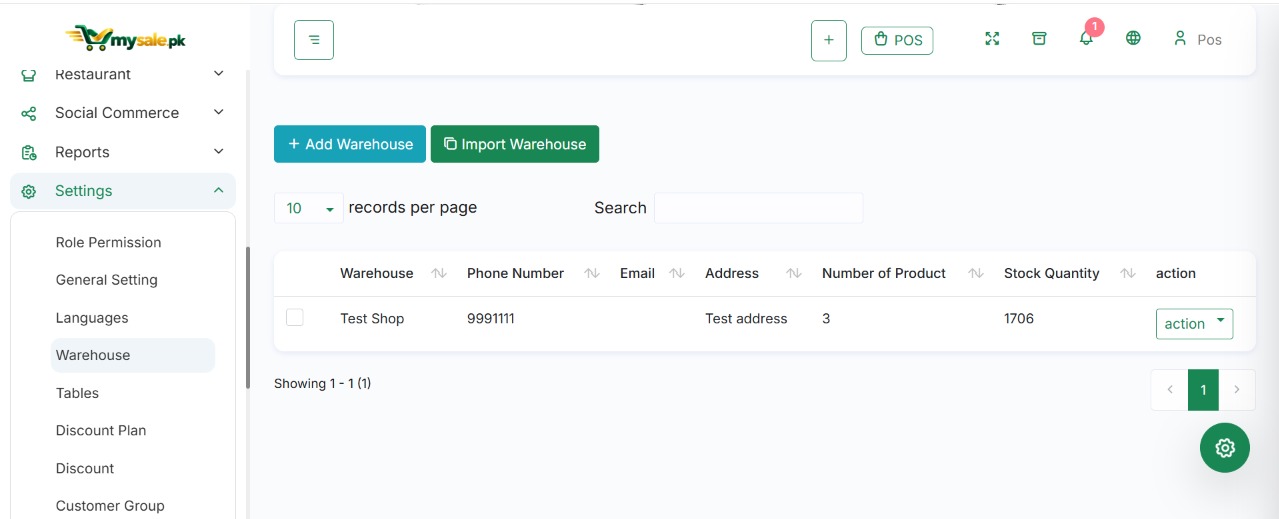
▤Warehouse list screenshotIncluded MySale.pk screenshot
MySale.pk warehouse and branch management
Screenshot 06 · MySale.pk warehouse and branch management.
ENGLISH

7. Products and catalogue

Build a clean product catalogue before recording purchases or sales.

اردو

مصنوعات اور کیٹلاگ

خریداری یا فروخت سے پہلے مصنوعات کی فہرست درست اور منظم بنائیں۔

07
ENGLISH GUIDEاردو رہنمائی

Recommended order

  1. Create product categories and brands if your workflow uses them.
  2. Create units of measure (for example, piece, box, kilogram or litre). Configure conversion units carefully, if supported.
  3. Open Products → Add Product (or your equivalent menu).
  4. Enter the product name, code/SKU, category, brand, unit, product type, and description if required.
  5. Enter cost and selling-price details, tax defaults, barcode, and stock-tracking fields as applicable.
  6. Save and check the product appears in the catalogue and can be selected on a test transaction.

Common product types

TypeUse it forCheck before saving
Standard productA normal stock itemUnit, code, price and stock settings
Variant productOne product with options such as size or colourEach variant's code, price and stock identity
Combo productA bundle of component productsComponent quantities and availability
Service productA service rather than physical stockCorrect service type and tax/price rules
Digital productA non-physical digital item, where supportedHow it is delivered and whether stock is tracked

Product quality checklist

  • Use a unique and readable product code.
  • Do not create duplicate products for the same item without a clear reason.
  • Use the correct purchase and sale units.
  • Review cost and selling price before starting live sales.
  • Attach a product image if your storefront or product screens use images.
  • For an existing live product, use the supported edit process rather than creating a duplicate.
Beginner example

For a bottle sold individually and by the carton, define the unit conversion before making transactions. Verify how the application handles carton purchases and bottle sales in a test environment.

پروڈکٹ شامل کرنے کی ترتیب

  1. ضرورت ہو تو پہلے Category اور Brand بنائیں۔
  2. Units بنائیں، مثلاً Piece، Box، Kilogram یا Litre؛ کنورژن احتیاط سے سیٹ کریں۔
  3. Products → Add Product کھولیں۔
  4. نام، Product Code/SKU، Category، Brand، Unit، Product Type اور تفصیل درج کریں۔
  5. لاگت، فروخت کی قیمت، ٹیکس، بارکوڈ اور اسٹاک ٹریکنگ کی معلومات بھریں۔
  6. محفوظ کرکے تصدیق کریں کہ پروڈکٹ فہرست میں آتی ہے اور ٹیسٹ ٹرانزیکشن میں منتخب ہوسکتی ہے۔

عام پروڈکٹ اقسام

  • Standard: عام اسٹاک آئٹم۔
  • Variant: ایک پروڈکٹ کی مختلف سائز یا رنگ والی اقسام۔
  • Combo: کئی پروڈکٹس کا پیک یا بنڈل۔
  • Service: ایسی سروس جس کا جسمانی اسٹاک نہیں ہوتا۔
  • Digital: ڈیجیٹل آئٹم، اگر آپ کے اکاؤنٹ میں دستیاب ہو۔

پروڈکٹ کی جانچ

  1. ہر پروڈکٹ کا منفرد اور آسان Product Code رکھیں۔
  2. بغیر ضرورت ایک ہی آئٹم کی نقل نہ بنائیں۔
  3. خریداری اور فروخت کی درست Units رکھیں۔
  4. لائیو سیل شروع کرنے سے پہلے Cost اور Sale Price چیک کریں۔
  5. موجودہ پروڈکٹ کو تبدیل کرنے کے لیے Edit کا درست طریقہ استعمال کریں۔
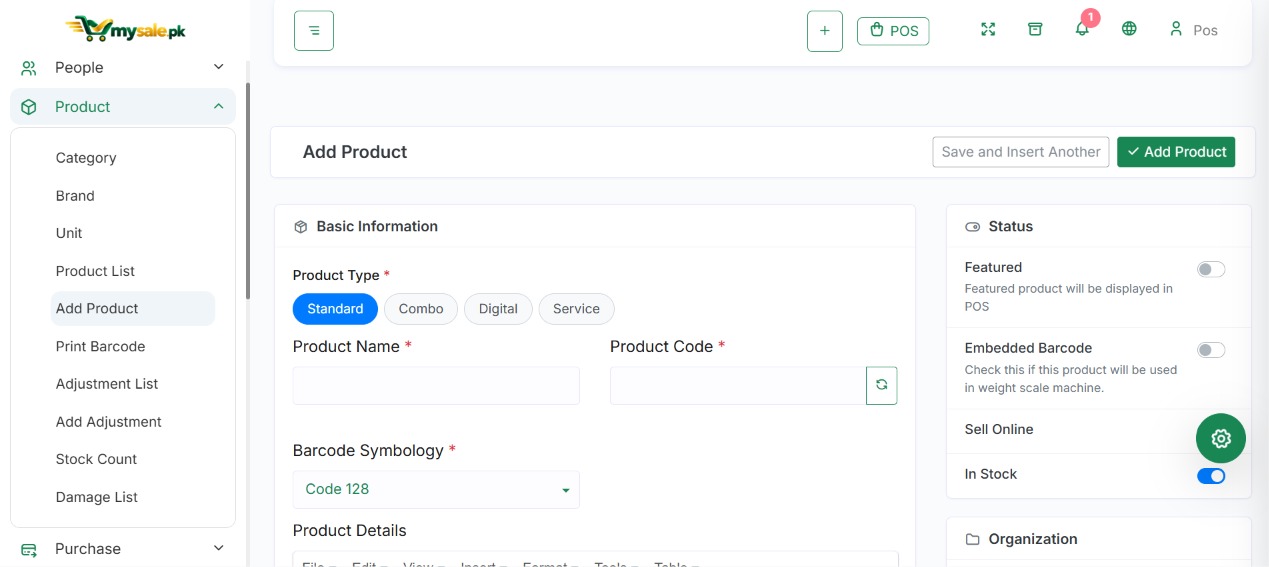
▣Add product screenshotIncluded MySale.pk screenshot
MySale.pk add product form
Screenshot 07 · MySale.pk add product form.
ENGLISH

8. Variants, batches, expiry, IMEI and serial numbers

اردو

ویرینٹس، بیچ، ایکسپائری، IMEI اور سیریل نمبر

ایسے سامان کے لیے شناختی معلومات محفوظ کریں جسے صرف مقدار سے ٹریک کرنا کافی نہ ہو۔

08
ENGLISH GUIDEاردو رہنمائی
  • Variants: use for options such as size, colour, storage capacity, or model. Confirm each variant can be identified separately.
  • Batch and expiry: use for goods where lots and expiration dates matter, such as food, medicine or cosmetics.
  • IMEI/serial number: use for individual devices or equipment that must be traceable one by one.
  • Barcode: use a unique code/label for rapid lookup and scanning. Check that the scanner reads the code expected by the product record.

Good traceability habits

  1. Enable the correct tracking type on the product before recording stock.
  2. Capture the batch, expiry date, IMEI or serial data when stock is received.
  3. At sale, select the exact tracked identity the customer receives.
  4. Use stock ledger and expiry/serial reports to investigate movement.
  5. Do not create missing historical batch or serial data by guessing after the stock has already moved.
!
Tracked inventory needs care

A regular quantity adjustment may not reconstruct the original batch, serial, IMEI, or landed-cost history. Follow the supported correction workflow and verify the ledger after the change.

اسٹاک کی شناخت درست رکھیں

  • اسٹاک درج کرنے سے پہلے پروڈکٹ میں درست Tracking Type فعال کریں۔
  • خریداری وصول کرتے وقت Batch، Expiry Date، IMEI یا Serial Number درج کریں۔
  • فروخت کے وقت وہی مخصوص یونٹ یا شناخت منتخب کریں جو کسٹمر کو دی جارہی ہے۔
  • اسٹاک کی نقل و حرکت جانچنے کے لیے Stock Ledger اور متعلقہ رپورٹس دیکھیں۔
  • پرانے اسٹاک کی گم شدہ سیریل یا بیچ معلومات اندازے سے نہ بنائیں۔
⌕Barcode or batch screenshotIncluded MySale.pk screenshot
MySale.pk stock and product tracking
Screenshot 08 · MySale.pk stock and product tracking.
ENGLISH

9. Customers and suppliers

اردو

کسٹمرز اور سپلائرز

رابطہ معلومات اور بقایا رقم درست رکھیں تاکہ سیلز اور خریداری صحیح پارٹی سے منسلک ہوں۔

09
ENGLISH GUIDEاردو رہنمائی

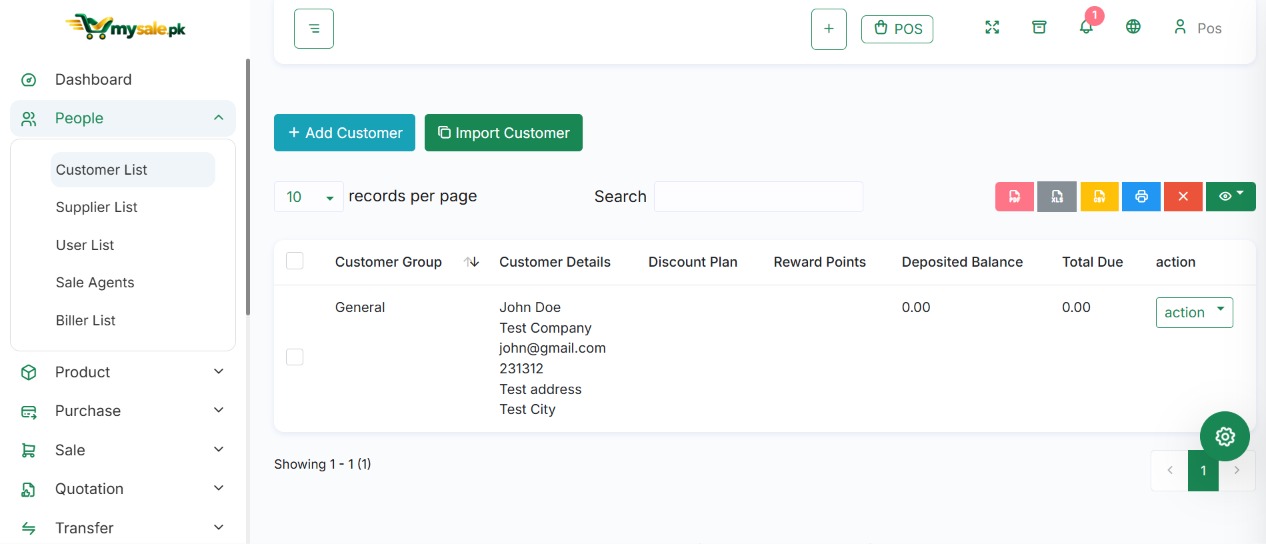
Add a customer

  1. Open the Customer list and choose Add Customer.
  2. Enter the name and any required contact details.
  3. Add phone, email, address, group or credit terms if used.
  4. Review any opening balance carefully and only enter it when your migration/setup process calls for it.
  5. Save and select the customer on a test sale.

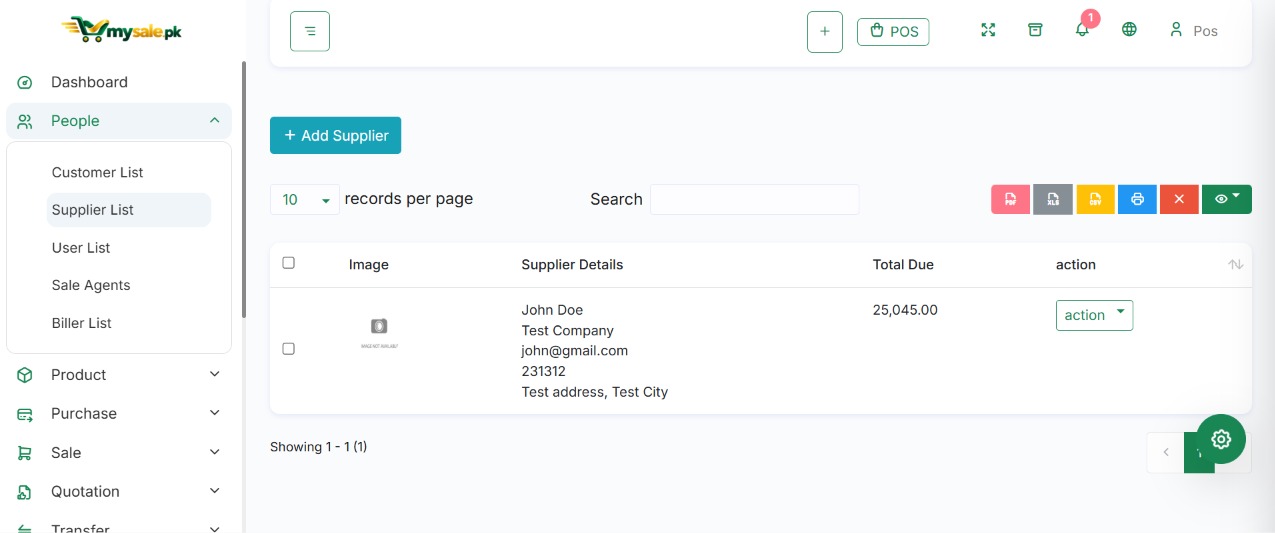
Add a supplier

  1. Open the Supplier list and choose Add Supplier.
  2. Enter the supplier name and contact details.
  3. Set applicable terms or reference information.
  4. Only enter opening payable balances using a verified migration figure.
  5. Save and choose the supplier on a test purchase.

Customer dues, supplier dues and deposits

Use the customer or supplier profile and transaction history to understand balances. A credit sale may leave money due from the customer; an unpaid purchase may leave money due to a supplier. Deposits, instalments, refunds and payment reversals should be recorded through their dedicated workflows where available.

  • Check that payment records are attached to the correct customer/supplier and invoice.
  • Do not create a duplicate customer simply to change an address or phone number.
  • Reconcile balances against transaction histories before making opening-balance corrections.

کسٹمر شامل کریں

  1. Customer List کھولیں اور Add Customer منتخب کریں۔
  2. نام اور مطلوبہ رابطہ معلومات درج کریں۔
  3. ضرورت ہو تو فون، ای میل، پتہ، گروپ یا کریڈٹ شرائط شامل کریں۔
  4. Opening Balance صرف تصدیق شدہ سیٹ اپ یا منتقلی کے عمل میں درج کریں۔
  5. محفوظ کرکے ٹیسٹ سیل میں کسٹمر منتخب کریں۔

سپلائر شامل کریں

  1. Supplier List کھولیں اور Add Supplier منتخب کریں۔
  2. سپلائر کا نام اور رابطہ معلومات درج کریں۔
  3. متعلقہ ادائیگی کی شرائط یا حوالہ شامل کریں۔
  4. Opening Payable صرف تصدیق شدہ رقم کی بنیاد پر درج کریں۔
  5. محفوظ کرکے ٹیسٹ خریداری میں سپلائر منتخب کریں۔

بقایا جات اور ایڈوانس

  • کریڈٹ سیل میں کسٹمر سے رقم باقی ہوسکتی ہے اور غیر ادا شدہ خریداری میں سپلائر کو رقم دینی ہوسکتی ہے۔
  • ایڈوانس، قسط، ریفنڈ اور ادائیگی کی واپسی کے لیے متعلقہ مخصوص ورک فلو استعمال کریں۔
  • ہر ادائیگی کو درست کسٹمر/سپلائر اور انوائس کے ساتھ منسلک کریں۔
  • بیلنس میں تبدیلی سے پہلے ٹرانزیکشن ہسٹری سے تصدیق کریں۔
♧Customer or supplier formIncluded MySale.pk screenshot
MySale.pk customer management
Screenshot 09 · MySale.pk customer management. Related supplier screenshot follows.
▧Supplier management screenshotIncluded MySale.pk screenshot
MySale.pk supplier management
Related screenshot · Supplier management
ENGLISH

10. Create a purchase and receive stock

اردو

خریداری بنائیں اور اسٹاک وصول کریں

خریداری میں سامان، سپلائر، لاگت اور وصول کرنے والے گودام کا درست ریکارڈ بنائیں۔

10
ENGLISH GUIDEاردو رہنمائی

Before making a purchase, ensure the supplier, receiving warehouse, products, purchase units, currency, taxes and payment accounts are configured.

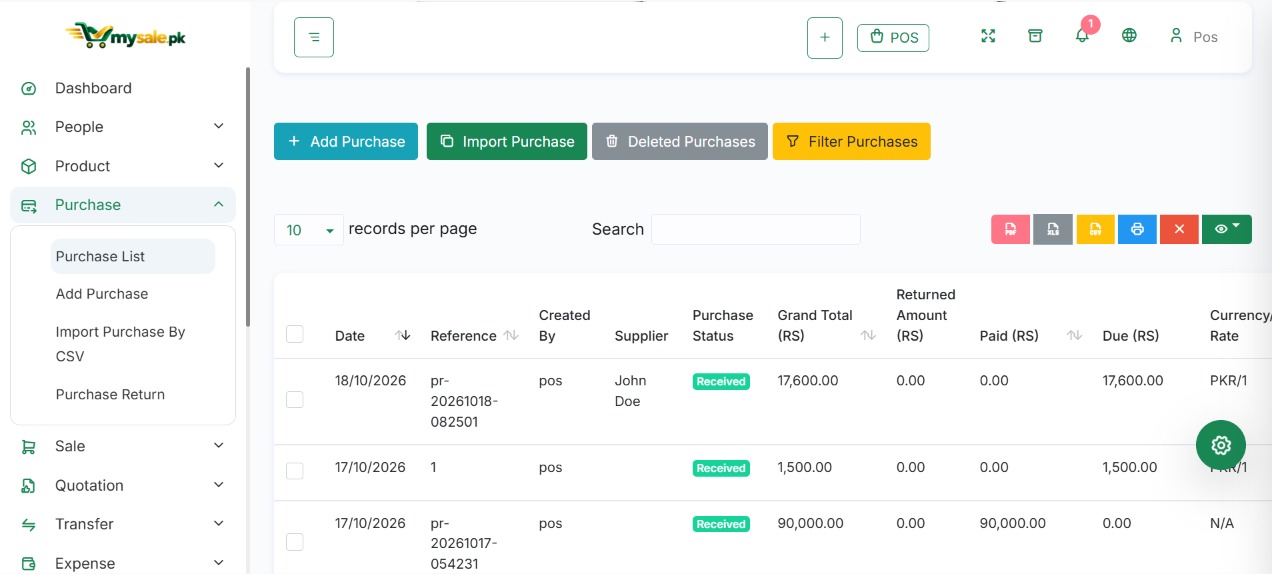
Create a purchase

  1. Open Purchase → Add Purchase or the matching purchase form.
  2. Select the supplier and the warehouse receiving the items.
  3. Set the purchase date, reference/invoice number, currency and rate where required.
  4. Add each product, quantity, unit cost, discount, tax, shipping or other configured charges.
  5. For tracked goods, enter the correct batch, expiry, IMEI or serial identities.
  6. Review subtotal, taxes, discounts, additional costs, total and any initial payment.
  7. Save/complete the purchase according to your workflow.
  8. Open the purchase details and confirm the status and received quantities.
i
What should happen?

A completed purchase should increase stock in the receiving warehouse and update the supplier payable. If Accounting is enabled and configured, the transaction may also create related journal entries. Verify the actual result in your version.

Purchase order versus purchase

If purchase orders are available, they are commonly used to plan or authorize a purchase before stock is received. A purchase/receiving record represents the actual goods and costs entered into the system. Do not assume creating a draft or pending record has already updated stock—check the status and ledger.

Before saving, verify

  • Correct supplier and warehouse.
  • Correct product, quantity and purchase unit.
  • Unit cost, tax, discount and freight/shipping.
  • Currency and rate, if foreign currency is used.
  • Payment amount, due amount and the correct payment account.

خریداری درج کریں

  1. Purchase → Add Purchase یا متعلقہ فارم کھولیں۔
  2. سپلائر اور سامان وصول کرنے والا گودام منتخب کریں۔
  3. تاریخ، انوائس/حوالہ نمبر اور ضرورت کے مطابق کرنسی درج کریں۔
  4. پروڈکٹ، مقدار، یونٹ لاگت، ڈسکاؤنٹ، ٹیکس اور شپنگ چارجز شامل کریں۔
  5. Tracked سامان کے لیے بیچ، ایکسپائری، IMEI یا سیریل معلومات درج کریں۔
  6. Subtotal، ٹیکس، ڈسکاؤنٹ، اضافی لاگت، کل اور ابتدائی ادائیگی چیک کریں۔
  7. خریداری کو اپنے نظام کے مطابق Save/Complete کریں۔
  8. تفصیلات کھول کر Status اور وصول شدہ مقدار کی تصدیق کریں۔

Purchase Order اور Purchase میں فرق

  • Purchase Order عموماً سامان منگوانے کی منصوبہ بندی یا منظوری کے لیے استعمال ہوتا ہے۔
  • Purchase/Receiving ریکارڈ میں اصل وصول شدہ سامان اور لاگت درج ہوتی ہے۔
  • Draft یا Pending ریکارڈ کو اسٹاک میں اضافہ نہ سمجھیں؛ Status اور Stock Ledger چیک کریں۔

محفوظ کرنے سے پہلے

  1. سپلائر اور گودام درست ہیں۔
  2. پروڈکٹ، مقدار اور خریداری کی یونٹ درست ہے۔
  3. Cost، Tax، Discount اور Freight/Shipping چیک ہیں۔
  4. غیر ملکی کرنسی ہو تو Currency اور Rate درست ہیں۔
  5. ادائیگی کی رقم، بقایا اور Payment Account درست ہیں۔
↓Add purchase screenshotIncluded MySale.pk screenshot
MySale.pk purchase entry screen
Screenshot 10 · MySale.pk purchase entry screen.
ENGLISH

11. Supplier payments, purchase returns and landed costs

اردو

سپلائر ادائیگیاں، خریداری واپسی اور اضافی لاگت

سپلائر کے بقایا، ادائیگی اور واپس کیے گئے سامان کا ریکارڈ ایک دوسرے کے مطابق رکھیں۔

11
ENGLISH GUIDEاردو رہنمائی

Record a supplier payment

  1. Open the purchase or supplier account and select the payment action your screen provides.
  2. Choose the correct supplier and related purchase/invoice when requested.
  3. Enter payment date, amount, method and receiving/issuing account.
  4. Add the bank reference or note, if useful.
  5. Save and verify the paid amount and remaining supplier balance.

Record a purchase return

  1. Find the original purchase and confirm which items and quantities are being returned.
  2. Open the supported purchase-return workflow.
  3. Select the items, quantities and any applicable reason or reference.
  4. Review the effect on stock, supplier balance, taxes and accounting before confirming.
  5. Verify the returned quantity and supplier balance afterwards.

Freight, duty and other landed costs

Some businesses need to add freight, customs duty, insurance or other costs to the cost of imported goods. Where a landed-cost allocation feature is enabled, follow its allocation rules and verify the resulting product/batch costs and profitability reports.

!
Avoid double-counting

Do not add a freight charge both as an independent expense and as an allocated product cost unless your accounting process explicitly requires both records. Follow one documented method and reconcile it.

سپلائر کو ادائیگی درج کریں

  1. خریداری یا سپلائر اکاؤنٹ کھولیں اور Payment کا اختیار منتخب کریں۔
  2. درست سپلائر اور متعلقہ انوائس منتخب کریں۔
  3. ادائیگی کی تاریخ، رقم، طریقہ اور متعلقہ اکاؤنٹ درج کریں۔
  4. ضرورت ہو تو بینک ریفرنس یا نوٹ لکھیں۔
  5. محفوظ کرکے ادا شدہ رقم اور باقی بقایا چیک کریں۔

خریداری واپس کریں

  • اصل خریداری کھولیں اور واپس ہونے والی پروڈکٹ اور مقدار کی تصدیق کریں۔
  • Purchase Return کا دستیاب ورک فلو کھولیں۔
  • پروڈکٹ، مقدار اور وجہ یا حوالہ درج کریں۔
  • تصدیق سے پہلے اسٹاک، سپلائر بیلنس، ٹیکس اور اکاؤنٹنگ کے اثرات چیک کریں۔
  • بعد میں واپس شدہ مقدار اور نیا بیلنس چیک کریں۔

فریٹ، ڈیوٹی اور دیگر اخراجات

  • درآمدی سامان کی لاگت میں Freight، Customs Duty، Insurance یا دیگر اخراجات شامل ہوسکتے ہیں۔
  • Landed Cost کا فیچر فعال ہو تو اس کے قواعد کے مطابق اخراجات تقسیم کریں۔
  • نتیجے میں پروڈکٹ/بیچ کی Cost اور Profitability Report کی تصدیق کریں۔
ENGLISH

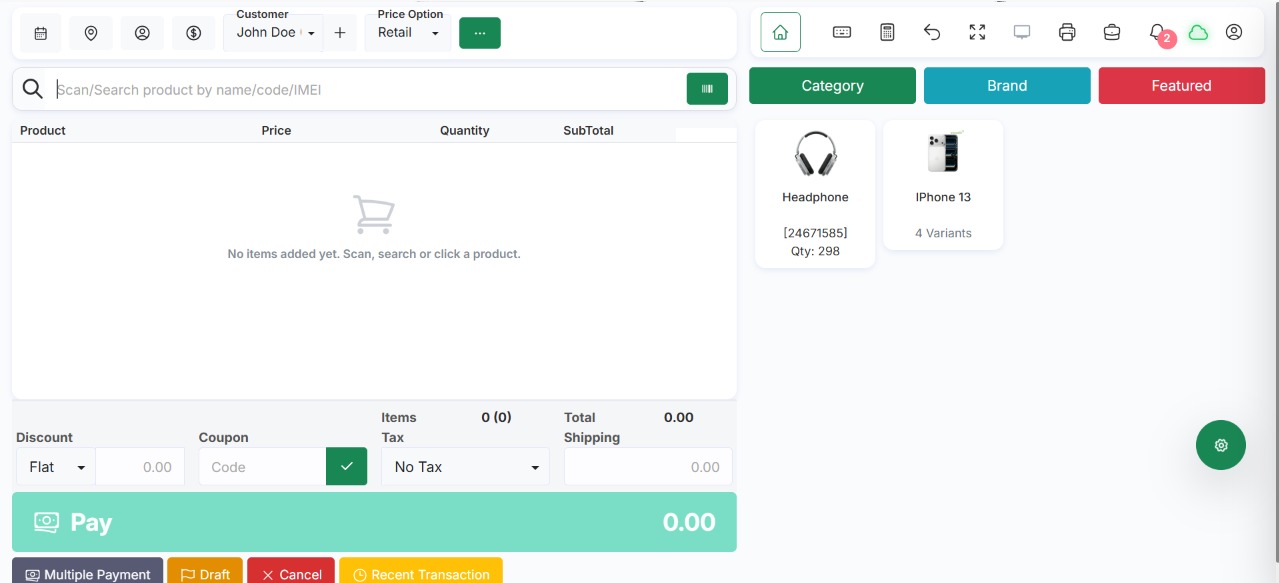
12. Make a sale in the POS

اردو

POS پر فروخت کریں

پروڈکٹ منتخب کرنے سے رسید جاری کرنے تک بنیادی چیک آؤٹ کا طریقہ۔

12
ENGLISH GUIDEاردو رہنمائی

Standard checkout

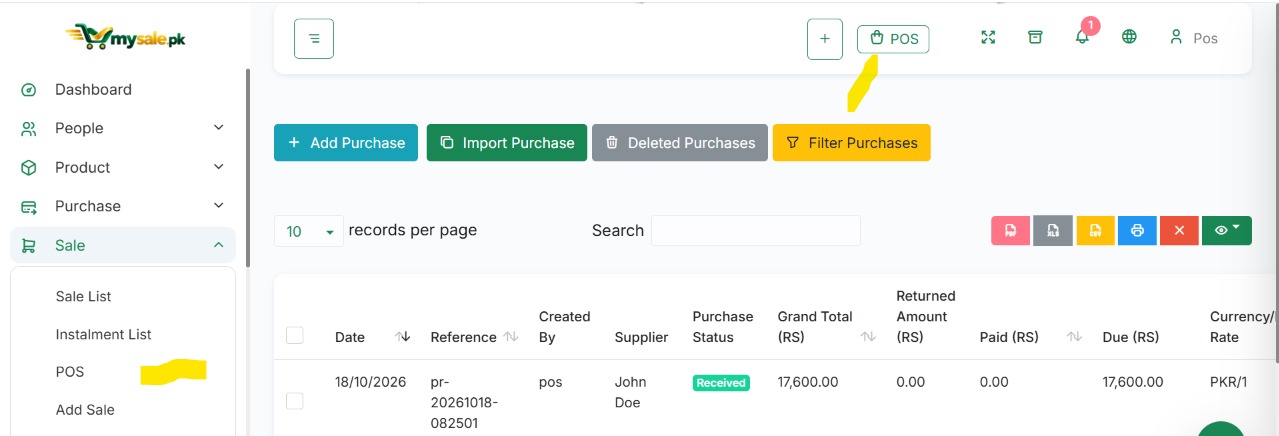
  1. Open the POS screen and verify the active warehouse/register if shown.
  2. Select the customer, or use the default/walk-in customer where permitted.
  3. Scan a barcode or search by product name, code, variant, or serial identity as supported.
  4. Confirm each item, quantity, selling price, discount and tax.
  5. Review the subtotal and total due. Check that the right currency is selected.
  6. Select a payment method and account, then enter the amount received.
  7. For split payments, enter each part separately and confirm the combined amount covers what is due.
  8. Complete the sale and print, email, or share the receipt using the options available.
  9. Verify the sale appears in transaction history and stock changed as expected.
1SelectCustomer & items
→
2ReviewQuantity & total
→
3PayPayment details
→
4FinishSave & receipt

POS tips

  • Use a barcode scanner if configured; test one barcode before the sales rush.
  • Check the selected warehouse when stock exists in multiple branches.
  • Use discount and price-edit permissions carefully.
  • For credit sales, deposits, instalments, gift cards or rewards, use the specific controls provided rather than entering an arbitrary payment.
  • Do not refresh or resubmit repeatedly if a save is still processing. First check transaction history to avoid a duplicate sale.

عام چیک آؤٹ

  • POS اسکرین کھولیں اور منتخب گودام یا Register چیک کریں۔
  • کسٹمر منتخب کریں یا اجازت ہو تو Walk-in Customer استعمال کریں۔
  • بارکوڈ اسکین کریں یا نام، کوڈ، Variant یا Serial/IMEI سے پروڈکٹ تلاش کریں۔
  • مقدار، قیمت، ڈسکاؤنٹ اور ٹیکس چیک کریں۔
  • ادائیگی کا طریقہ منتخب کریں؛ ضرورت ہو تو Split Payment درج کریں۔
  • موصول رقم اور واپس کیے جانے والے بقایا (Change) چیک کریں۔
  • فروخت مکمل کریں اور رسید پرنٹ یا شیئر کریں۔

اہم احتیاطیں

  • فروخت مکمل کرنے سے پہلے پروڈکٹ، مقدار، قیمت اور گودام دوبارہ چیک کریں۔
  • کریڈٹ سیل، قسط، کسٹمر ڈپازٹ یا Gift Card صرف اسی وقت استعمال کریں جب آپ کے اکاؤنٹ میں فعال ہوں۔
  • انٹرنیٹ یا ادائیگی کی خرابی ہو تو دوبارہ Submit کرنے سے پہلے تصدیق کریں کہ پہلی سیل بن چکی ہے یا نہیں۔
▣POS checkout screenshotIncluded MySale.pk screenshot
MySale.pk point of sale checkout
Screenshot 11 · MySale.pk point of sale checkout. Related POS navigation screenshot follows.
▧Open the POS screenIncluded MySale.pk screenshot
MySale.pk POS navigation
Related screenshot · POS navigation
ENGLISH

13. Sales, credit sales and instalments

اردو

فروخت، کریڈٹ سیل اور اقساط

انوائس اور موصول ہونے والی رقم الگ سمجھیں تاکہ بقایا ادائیگیاں درست رہیں۔

13
ENGLISH GUIDEاردو رہنمائی

Record a standard sale outside the POS

  1. Open the Sales list and select Add Sale.
  2. Choose customer, warehouse, biller/agent, date and currency if requested.
  3. Add products and confirm quantities, unit prices, discounts and taxes.
  4. Enter the initial payment only if one is being made now.
  5. Review the total and balance, then save using the correct status/action.
  6. Check the sale detail, invoice and payment history.

Credit sale

For an approved credit sale, record the full sale and the payment actually received. The unpaid portion should remain due against the customer when the workflow is configured that way. Check the customer's credit limit and terms before confirming.

Installments and down payments

  • Confirm the agreed total, first down payment and any configured instalment plan.
  • Record each subsequent payment as a separate payment against the correct outstanding sale/invoice.
  • Check the balance after every payment and provide a receipt.
  • Use supported refund/reversal workflows if a payment was posted in error.
i
Payment records are separate business records

Editing a sale total and changing a payment are not the same action. If a customer has paid, use the payment/refund workflow rather than trying to fix a mismatch by editing unrelated fields.

Review a sale

Use the Sales list to filter by date, customer, reference, warehouse or status. Open a specific sale for the detailed items and payment history. If totals look wrong, compare the saved line values and payment records with the invoice.

POS کے علاوہ عام سیل

  • Sales میں Add Sale یا دستیاب سیل فارم کھولیں۔
  • کسٹمر، گودام، تاریخ اور پروڈکٹس منتخب کریں۔
  • مقدار، قیمت، ٹیکس اور ڈسکاؤنٹ چیک کریں۔
  • موصول ادائیگی درج کریں، یا مناسب صورت میں بقایا چھوڑیں۔
  • محفوظ کرکے انوائس اور بیلنس کی تصدیق کریں۔

کریڈٹ سیل

  • اگر مکمل رقم وصول نہیں ہوئی تو دستیاب کریڈٹ سیل ورک فلو استعمال کریں۔
  • کسٹمر، کریڈٹ حد اور بقایا رقم چیک کریں۔
  • بعد میں آنے والی ہر ادائیگی صحیح سیل/کسٹمر کے ساتھ ریکارڈ کریں۔

اقساط اور ڈاؤن پیمنٹ

  • قسطوں کی شرائط اور ابتدائی ادائیگی واضح طور پر درج کریں۔
  • باقی اقساط کی رقم اور مقررہ تاریخیں چیک کریں، اگر یہ آپ کے ورژن میں دستیاب ہوں۔
  • ہر وصول شدہ قسط ریکارڈ کریں اور بقایا دوبارہ تصدیق کریں۔

سیل کا جائزہ

  • انوائس نمبر، کسٹمر، آئٹمز، ادائیگی اور بقایا چیک کریں۔
  • کسی تبدیلی یا Refund کے لیے مکمل سیل کو دوبارہ بنانے کے بجائے متعلقہ واپسی یا ایڈجسٹمنٹ کا ورک فلو دیکھیں۔
ENGLISH

14. Sale returns, refunds and exchanges

اردو

فروخت کی واپسی، ریفنڈ اور تبادلہ

واپسی کا درست طریقہ استعمال کریں تاکہ اسٹاک اور کسٹمر کا بیلنس ایک ساتھ درست ہو۔

14
ENGLISH GUIDEاردو رہنمائی
  1. Find and open the original sale. Confirm the sale reference and returned items.
  2. Start the sale-return or exchange action supplied by your account.
  3. Choose the specific products and quantities being returned. For tracked items, select the exact batch/serial/IMEI where applicable.
  4. Check whether the returned stock is fit to restock or needs to be marked damaged according to your process.
  5. Review the calculated return value, tax treatment and any refund or customer credit.
  6. Confirm the return, then verify stock, payment/credit balance and the return record.
!
Do not delete the original sale to process a return

A return keeps an audit trail and records the amount/quantity being reversed. Use the return workflow whenever it matches the business event.

For exchanges, verify the returned product and the replacement product are both represented accurately. If a refund is due, check the refund method and payment-account record. If the original sale is already involved in later accounting or stock activity, follow any system warning and request assistance rather than forcing the transaction.

واپسی کا طریقہ

  1. اصل سیل/انوائس تلاش کریں اور خریداری کی تاریخ اور آئٹمز کی تصدیق کریں۔
  2. واپس ہونے والی پروڈکٹ، مقدار اور وجہ منتخب کریں۔
  3. چیک کریں کہ آئٹم قابلِ فروخت اسٹاک میں واپس جائے گا یا Damage/خراب اسٹاک میں۔
  4. ریفنڈ، کسٹمر کریڈٹ، ٹیکس اور ادائیگی اکاؤنٹ کے اثرات چیک کریں۔
  5. Return/Exchange محفوظ کرکے اسٹاک اور کسٹمر بیلنس کی تصدیق کریں۔

احتیاط

  • صرف رقم درست کرنے کے لیے الگ سے منفی سیل نہ بنائیں، جب تک آپ کے منظور شدہ طریقہ کار میں ایسا نہ ہو۔
  • تبدیلی کی صورت میں نئی دی گئی پروڈکٹ اور وصول شدہ پروڈکٹ دونوں کا ریکارڈ دیکھیں۔
ENGLISH

15. Expenses and other income

اردو

اخراجات اور دیگر آمدنی

دفتری اخراجات اور دیگر آمدنی کو سیلز یا خریداری سے الگ ریکارڈ کریں، جہاں یہ ماڈیول دستیاب ہو۔

15
ENGLISH GUIDEاردو رہنمائی

Record an expense

  1. Open the Expenses area and choose Add Expense.
  2. Select an expense category, date and paying account.
  3. Enter amount, reference, payee and a useful note.
  4. Attach an invoice or receipt if uploads are supported.
  5. Save and confirm the expense appears in the list and relevant reports.

Examples can include rent, utilities, delivery charges, office supplies or other business costs. Follow your accountant's policy for classifying costs such as freight that may need to be allocated to product cost rather than recorded as a routine expense.

Reconcile cash and bank activity

  • Use the correct cash/bank account for every transaction.
  • Enter a bank or payment reference where helpful.
  • Compare the system balance with bank statements and cash-count records at a regular cadence.
  • Use a supported reversal or correction if an expense was recorded on the wrong date, category or account.

اخراجات درج کریں

  1. Expenses یا متعلقہ مینو کھولیں اور Add Expense منتخب کریں۔
  2. Expense Category، تاریخ، رقم اور ادائیگی کا اکاؤنٹ منتخب کریں۔
  3. سپلائر/وینڈر، حوالہ، نوٹ یا رسید کی تصویر ضرورت کے مطابق شامل کریں۔
  4. محفوظ کرکے Expense Report اور Cash/Bank Balance چیک کریں۔

کیش اور بینک کا حساب ملائیں

  • نظام کی انٹریز کو اصل بینک اسٹیٹمنٹ یا کیش ریکارڈ سے ملائیں۔
  • تاریخ، رقم اور حوالہ نمبر کی جانچ کریں۔
  • فرق ہو تو پہلے اصل ٹرانزیکشن کی شناخت کریں، پھر منظور شدہ طریقے سے درست کریں۔
ENGLISH

16. Stock counts, adjustments and transfers

اردو

اسٹاک گنتی، ایڈجسٹمنٹ اور ٹرانسفر

ریکارڈ میں موجود مقدار کو حقیقی اسٹاک اور گوداموں کی نقل و حرکت کے ساتھ ملائیں۔

16
ENGLISH GUIDEاردو رہنمائی

Stock count or adjustment

  1. Select the correct warehouse and count date.
  2. Physically count the items using the same unit and variant/identity as the system.
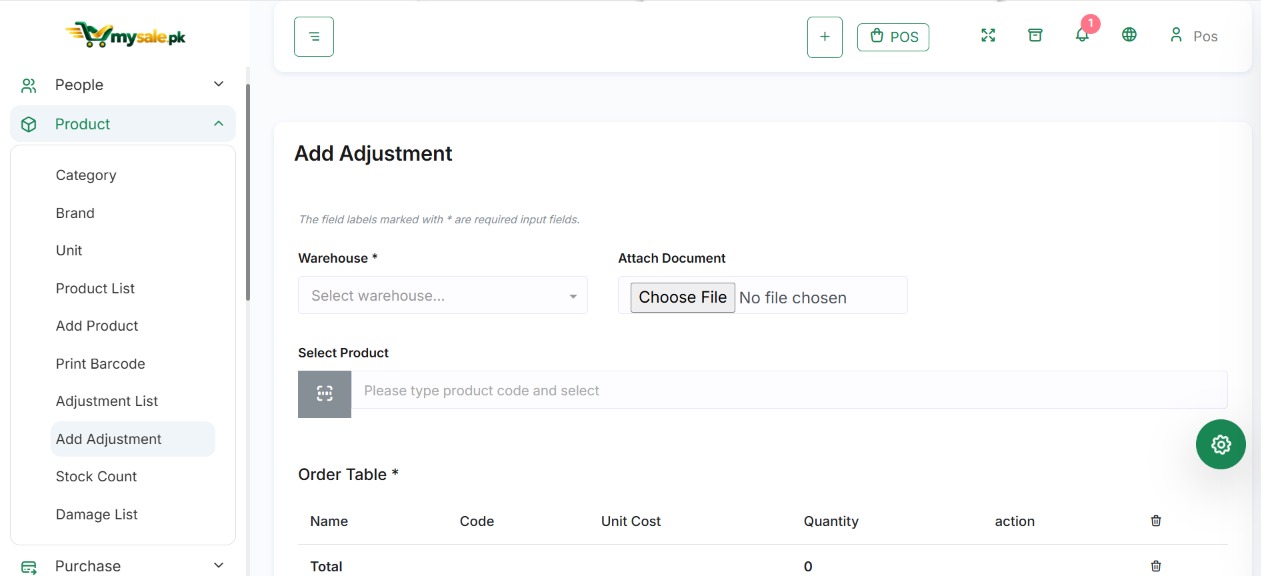
  3. Compare physical quantity with recorded quantity.
  4. Use the approved count or adjustment workflow and select a clear reason (for example, damage, loss, or verified count correction).
  5. Have a manager approve changes if required by your policy.
  6. Save and verify the stock ledger and warehouse quantity.

Transfer between warehouses

  1. Open Transfer → Add Transfer where available.
  2. Select different source and destination warehouses.
  3. Add products and quantities available in the source location.
  4. Enter the required batch or variant details where applicable.
  5. Save and complete the transfer status according to the system workflow.
  6. Check the stock ledger at both locations. Company-wide total should generally remain the same for a simple transfer.

Stock Ledger

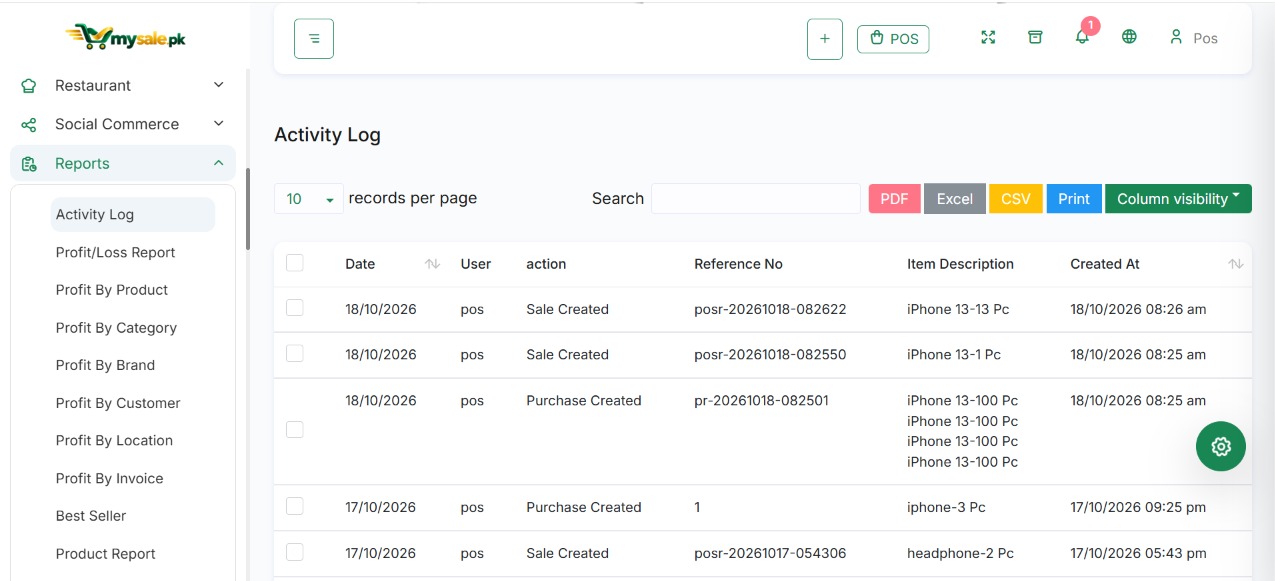
The Stock Ledger is useful for tracing when and why quantities changed. When stock looks incorrect, filter the correct product, time period and warehouse, then compare the sequence of purchases, sales, returns, adjustments and transfers.

اسٹاک گنتی یا ایڈجسٹمنٹ

  1. درست گودام اور گنتی کی تاریخ منتخب کریں۔
  2. پروڈکٹ کو اسی Unit، Variant یا شناخت کے مطابق جسمانی طور پر گنیں۔
  3. حقیقی مقدار کا نظام میں موجود مقدار سے موازنہ کریں۔
  4. منظور شدہ Stock Count/Adjustment ورک فلو استعمال کریں اور واضح وجہ لکھیں۔
  5. ضرورت ہو تو Manager سے منظوری لیں۔
  6. محفوظ کرکے Stock Ledger اور گودام کی مقدار چیک کریں۔

گوداموں کے درمیان ٹرانسفر

  1. Transfer → Add Transfer کھولیں۔
  2. مختلف Source اور Destination Warehouses منتخب کریں۔
  3. Source گودام میں دستیاب پروڈکٹس اور مقدار شامل کریں۔
  4. ضرورت کے مطابق بیچ یا Variant کی تفصیل منتخب کریں۔
  5. ٹرانسفر مکمل کرکے دونوں گوداموں کا Stock Ledger دیکھیں۔
  6. عام ٹرانسفر میں کمپنی کے مجموعی اسٹاک کی مقدار عموماً تبدیل نہیں ہونی چاہیے۔

Stock Ledger

  • کسی پروڈکٹ، تاریخ اور گودام کے فلٹر لگا کر معلوم کریں کہ اسٹاک کب اور کیوں بدلا۔
  • Purchase، Sale، Return، Adjustment اور Transfer کے ریکارڈ ترتیب سے چیک کریں۔
⇄Stock ledger or transfer screenshotIncluded MySale.pk screenshot
MySale.pk stock control and ledger
Screenshot 12 · MySale.pk stock control and ledger.
ENGLISH

17. Accounting and financial accounts

اردو

اکاؤنٹنگ اور مالی اکاؤنٹس

اکاؤنٹنگ کو فعال کرنے سے پہلے Chart of Accounts اور اکاؤنٹس کی Mapping درست ہونی چاہیے۔

17
ENGLISH GUIDEاردو رہنمائی

Where accounting is enabled, business transactions may feed into double-entry journals. Correct account setup matters: sales, purchases, customer receipts, supplier payments, returns, expenses and cash/bank activity need to map to the intended accounts.

Common accounting areas

▤Chart of Accounts

Organizes asset, liability, equity, income and expense accounts.

↔General Ledger

Shows posted movement for individual accounts.

≋Trial Balance

Summarizes debit and credit balances for a selected period.

◷Financial statements

May include Profit & Loss, Balance Sheet and Cash Flow reports.

Safe activation and review

  1. Review the Chart of Accounts and required mappings.
  2. Complete any accounting readiness checks shown in your version.
  3. Run one test purchase and one test sale, including payments.
  4. Inspect their journals and compare the amounts with transaction detail.
  5. Review Accounting Health or diagnostic screens if available.
  6. Only rely on reports after discrepancies have been investigated and the setup has been reviewed by the person responsible for your accounts.
!
Accounting is configuration-sensitive

Do not edit database records directly or change account mappings just to force a report to balance. Preserve a backup and use the documented correction, reversal and closing workflows for your installed version.

اکاؤنٹنگ سیٹ اپ اور جانچ

  1. Chart of Accounts اور متعلقہ Mapping کا جائزہ لیں۔
  2. اپنے ورژن میں موجود Accounting Readiness یا Health Checks مکمل کریں۔
  3. ایک ٹیسٹ Purchase اور ایک ٹیسٹ Sale بنائیں اور ان کی ادائیگیاں درج کریں۔
  4. متعلقہ Journal Entries کھولیں اور رقوم کو اصل ٹرانزیکشن سے ملائیں۔
  5. Accounting Health یا Diagnostics دستیاب ہوں تو انہیں دیکھیں۔
  6. فرق حل ہونے اور اکاؤنٹنگ ذمہ دار شخص کی جانچ کے بعد ہی رپورٹوں پر اعتماد کریں۔

عام رپورٹس

  • General Ledger، Trial Balance، Profit & Loss، Balance Sheet اور Cash Flow دستیاب ہوسکتے ہیں۔
  • کسٹمر کے Receivables، سپلائر کے Payables اور Cash/Bank اکاؤنٹس کا باقاعدگی سے موازنہ کریں۔
ENGLISH

18. Reports and business insights

Use consistent filters to turn transaction records into reliable business insights.

اردو

رپورٹس اور کاروباری معلومات

درست فلٹرز کے ساتھ رپورٹس دیکھیں تاکہ کاروباری فیصلے قابلِ اعتماد اعداد و شمار پر ہوں۔

18
ENGLISH GUIDEاردو رہنمائی
ReportUse it toCheck before comparing
Sales reportReview sales for a period, product, customer or location.Date range, sale status, warehouse and return treatment.
Purchase reportReview received goods and supplier purchasing.Purchase status, supplier and date range.
Stock report / Stock LedgerCheck current stock and trace movements.Product, warehouse, variant or tracked identity.
Customer due reportFind outstanding customer balances.Payments, returns, credit notes and customer filters.
Supplier due reportReview amounts still payable to suppliers.Supplier payments and purchase returns.
Profitability reportCompare margin by product, category or location if supported.Cost data, taxes, discounts, returns and landed costs.
Cash register / payment reportReconcile cash collection and recorded payments.Account, method, cashier and date/time range.

How to investigate a number

  1. Record the report name and filters used.
  2. Open the detailed transactions behind the total when available.
  3. Compare invoices, payments, refunds, returns and ledger entries.
  4. Repeat the report using the same date and warehouse filters before comparing with another report.
  5. Export a copy for review where permitted, and protect the file because it may contain customer or financial information.

کسی رقم کی تحقیق کیسے کریں

  • رپورٹ کا نام اور استعمال کیے گئے فلٹر نوٹ کریں۔
  • جہاں ممکن ہو کل رقم کے پیچھے موجود تفصیلی ٹرانزیکشنز کھولیں۔
  • انوائسز، ادائیگیاں، ریفنڈز، واپسیوں اور لیجر انٹریز کا موازنہ کریں۔
  • دوسری رپورٹ سے موازنہ کرتے وقت تاریخ اور گودام کے وہی فلٹرز رکھیں۔
  • ضرورت پر رپورٹ Export کریں اور فائل کو محفوظ رکھیں، کیونکہ اس میں مالی یا کسٹمر معلومات ہوسکتی ہیں۔

اہم بات

  • سیلز، خریداری، اسٹاک، کسٹمر بقایا، سپلائر بقایا اور منافع کی رپورٹس میں تاریخ، برانچ اور اسٹیٹس کے فلٹر لازماً چیک کریں۔
▥Reports screen screenshotIncluded MySale.pk screenshot
MySale.pk business reports
Screenshot 13 · MySale.pk business reports.
ENGLISH

19. Invoices, receipts and printing

اردو

انوائس، رسید اور پرنٹنگ

پرنٹ یا شیئر کرنے سے پہلے تصدیق کریں کہ دستاویز درست ٹرانزیکشن سے تعلق رکھتی ہے۔

19
ENGLISH GUIDEاردو رہنمائی

Print or share a sales invoice/receipt

  1. Open the saved sale from transaction history.
  2. Choose Print, Invoice, Receipt, or the available share option.
  3. Check the business name, document number, customer, items, quantities, taxes, discounts, total and payment status.
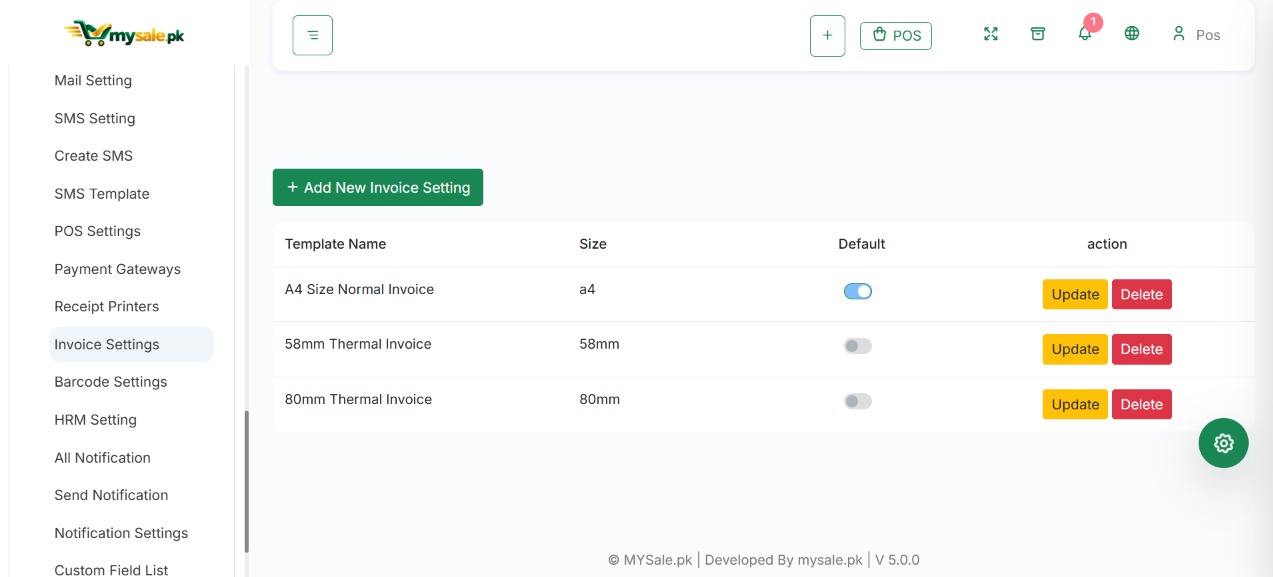
  4. Select the appropriate printer or paper layout if your system offers a choice.
  5. Preview before printing or sharing.
  6. Confirm the document was delivered or printed successfully.

Printer and barcode notes

  • Thermal receipts commonly use 58 mm or 80 mm rolls; choose the matching layout if supported.
  • For standard paper, verify page size and margins.
  • Barcode-label printing depends on label size and printer settings.
  • If printing fails, check browser print settings, the selected printer, paper size and pop-up blocking.
  • Email or WhatsApp sharing is available only when the relevant integration and account settings are configured.

رسید یا انوائس پرنٹ/شیئر کریں

  • Transaction History سے محفوظ شدہ سیل کھولیں۔
  • Print، Invoice، Receipt یا دستیاب Share اختیار منتخب کریں۔
  • کاروباری نام، دستاویز نمبر، کسٹمر، آئٹمز، مقدار، ٹیکس، ڈسکاؤنٹ، کل اور Payment Status چیک کریں۔
  • درست پرنٹر اور پیپر لے آؤٹ منتخب کریں۔
  • پہلے Preview کریں، پھر پرنٹ یا شیئر کریں۔
  • تصدیق کریں کہ دستاویز درست طور پر پرنٹ یا موصول ہوگئی۔

پرنٹر اور بارکوڈ نوٹس

  • تھرمل رسید عموماً 58mm یا 80mm رول پر ہوتی ہے؛ دستیاب ہو تو درست سائز منتخب کریں۔
  • عام کاغذ کے لیے صفحے کا سائز اور مارجن چیک کریں۔
  • بارکوڈ لیبل کے لیے لیبل سائز اور پرنٹر کی ترتیبات ملائیں۔
  • پرنٹنگ ناکام ہو تو Browser Print، پرنٹر کنکشن، پیپر سائز اور Popup Settings چیک کریں۔
  • Email یا WhatsApp شیئرنگ کے لیے متعلقہ انٹیگریشن کا فعال ہونا ضروری ہوسکتا ہے۔
▧Invoice or receipt screenshotIncluded MySale.pk screenshot
MySale.pk invoice and receipt preview
Screenshot 14 · Invoice preview. Keep customer and transaction details private before sharing.
ENGLISH

20. Import and export data safely

اردو

ڈیٹا امپورٹ اور ایکسپورٹ محفوظ طریقے سے

بڑی مقدار میں ڈیٹا اپ لوڈ کرنے کے لیے اپنے نصب شدہ ورژن کا تازہ ٹیمپلیٹ استعمال کریں۔

20
ENGLISH GUIDEاردو رہنمائی

Before importing

  1. Take a fresh backup before changing large amounts of data.
  2. Download the current import template from the relevant module, if offered.
  3. Keep the column headings and required formats intact.
  4. Check required names, codes, units, categories, tax values and other references already exist.
  5. Try a small sample first and review the result for duplicates or errors.
  6. Import the remaining rows only after the sample is correct.

Common causes of import failures

  • Missing required columns or renamed headers.
  • Duplicate product codes or customer/supplier identifiers.
  • Invalid dates, decimal formats, tax names, units or category references.
  • Incorrect warehouse, unit conversion, batch or serial details.
  • Opening balances or historical rates that are not verified.

Export only the data you need. Store exported files securely and delete temporary copies according to your business privacy policy. A spreadsheet import is not a safe way to recreate historic traceability or reverse posted accounting without a planned migration process.

امپورٹ سے پہلے

  1. بڑی تبدیلی سے پہلے تازہ Backup بنائیں۔
  2. متعلقہ ماڈیول سے موجودہ Import Template ڈاؤن لوڈ کریں۔
  3. کالم کے نام اور مطلوبہ فارمیٹ تبدیل نہ کریں۔
  4. ضروری Product Code، Unit، Category، Tax اور دیگر حوالہ جات پہلے سے موجود ہونے کی تصدیق کریں۔
  5. پہلے چند ریکارڈز کا Sample Import کریں اور نتائج چیک کریں۔
  6. Sample درست ہو تو باقی ڈیٹا امپورٹ کریں۔

عام غلطیاں

  • ضروری کالم غائب ہونا یا Header کا نام بدل دینا۔
  • ایک ہی Product Code یا کسٹمر/سپلائر شناخت کا دوبارہ استعمال۔
  • غلط تاریخ، اعشاریہ، ٹیکس نام یا Unit۔
  • غلط Warehouse، Unit Conversion، Batch یا Serial Number۔
  • غیر تصدیق شدہ Opening Balance یا پرانی Exchange Rate۔
  • صرف ضرورت کا ڈیٹا Export کریں اور فائل کو محفوظ جگہ پر رکھیں۔
ENGLISH

21. Online store (eCommerce)

اردو

آن لائن اسٹور (eCommerce)

فعال ہونے پر آن لائن اسٹور پروڈکٹ، اسٹاک، کسٹمر، آرڈر اور ادائیگی کے عمل سے منسلک ہوسکتا ہے۔

21
ENGLISH GUIDEاردو رہنمائی

In the documented Mysale.pk package, the eCommerce module may need to be enabled by an administrator before use. Availability on MySale.pk depends on your edition, subscription and setup.

Typical setup order

  1. Ask an administrator to enable the module and grant appropriate access.
  2. Configure store identity, domain, currency, stock/warehouse rules, delivery areas and shipping rules.
  3. Choose which products are published online and verify names, prices, descriptions, variants, images and stock.
  4. Configure storefront layout, categories, menus, pages, banners and other visual content.
  5. Configure email and payment providers only after credentials and provider-side requirements are verified.
  6. Test registration/login, product search, product detail, cart, checkout, delivery, payment success/failure and order history.
  7. Confirm an accepted test order appears in the back office and that stock, payment and order status match.

Online order checklist

  • Is the product published and available in the correct stock location?
  • Are price, variants, tax and delivery fees correct?
  • Does the checkout show the correct order total before payment?
  • Has payment been verified through the configured provider—not only a browser message?
  • Can staff find, process, fulfil and track the order?
!
Do a real-world test before launch

Third-party payment gateways, shipping providers, email and domain configuration need deployment-specific testing. A module being visible does not guarantee every provider is configured or ready to settle live payments.

سیٹ اپ کی ترتیب

  1. ایڈمن سے ماڈیول فعال اور مناسب اجازتیں تفویض کروائیں۔
  2. اسٹور کی معلومات، ڈومین، کرنسی، اسٹاک/گودام، Delivery Areas اور Shipping Rules سیٹ کریں۔
  3. آن لائن دکھائے جانے والے پروڈکٹس منتخب کرکے نام، قیمت، Variant، تصاویر اور اسٹاک چیک کریں۔
  4. Storefront Layout، Categories، Menu، Pages اور Banners ترتیب دیں۔
  5. Email اور Payment Providers کی ترتیبات اور اسناد کی تصدیق کریں۔
  6. رجسٹریشن، پروڈکٹ سرچ، Cart، Checkout، Delivery، Payment اور Order History ٹیسٹ کریں۔
  7. ایک ٹیسٹ آرڈر کو Back Office میں تلاش کرکے آرڈر، اسٹاک اور ادائیگی کا اسٹیٹس چیک کریں۔

آرڈر چیک لسٹ

  1. پروڈکٹ آن لائن شائع اور درست اسٹاک لوکیشن میں موجود ہے؟
  2. قیمت، Variant، ٹیکس اور ڈیلیوری فیس درست ہیں؟
  3. ادائیگی سے پہلے Checkout کا کل درست دکھائی دیتا ہے؟
  4. ادائیگی Provider سے تصدیق شدہ ہے؟
  5. عملہ آرڈر تلاش، پروسیس اور ٹریک کرسکتا ہے؟
⌘Online storefront screenshotIncluded MySale.pk screenshot
MySale.pk ecommerce storefront
Screenshot 15 · MySale.pk eCommerce storefront.
ENGLISH

22. connection

اردو

کنکشن

اپنی موجودہ WordPress دکان کو Mysale.pk سے جوڑنے سے پہلے Sync کی ترتیبات اور حدود سمجھیں۔

22
ENGLISH GUIDEاردو رہنمائی

Where integration is included and enabled, it can connect the physical-store back office with a sales channel. WordPress hosting, , provider accounts and credentials are separate services and must be configured independently.

  1. Confirm the integration is available for your account and enabled by an administrator.
  2. Back up both systems before making the first synchronization.
  3. Follow the current connection screen to enter the required site URL and API credentials securely.
  4. Map products, SKUs, variants, stock locations, taxes and order statuses as required by your version.
  5. Run a small controlled test or manual synchronization.
  6. Compare a sample product and order on both systems, including stock and payment/status information.
  7. Only then run the normal workflow; monitor errors and duplicate records.
i
Define the source of truth

Before synchronizing, decide which system owns product names, prices, stock, refunds and order status. Do not assume every field syncs in both directions or in real time.

کنکشن کی بنیادی ترتیب

  1. WordPress/ اور Mysale.pk دونوں طرف ضروری اجازتیں اور API کنکشن ترتیب دیں۔
  2. دستیاب سرکاری ہدایات کے مطابق کنکشن ٹیسٹ کریں۔
  3. طے کریں کہ پروڈکٹس، قیمتیں، اسٹاک اور آرڈرز میں سے کون سا ڈیٹا Sync ہوگا اور کس سمت میں ہوگا۔
  4. پہلے چند ٹیسٹ پروڈکٹس اور آرڈرز پر Manual Sync کرکے فرق چیک کریں۔
  5. ڈپلیکیٹ آرڈر یا غلط اسٹاک سے بچنے کے لیے Sync Log اور Order Reference دیکھیں۔

ضروری احتیاط

  • اندازہ نہ لگائیں کہ ہر فیلڈ خودکار Sync ہوتا ہے؛ اپنے ورژن کی Sync Boundaries چیک کریں۔
  • Live Sync شروع کرنے سے پہلے Backup بنائیں اور واضح کریں کہ اصل Data Source کون سا سسٹم ہے۔
ENGLISH

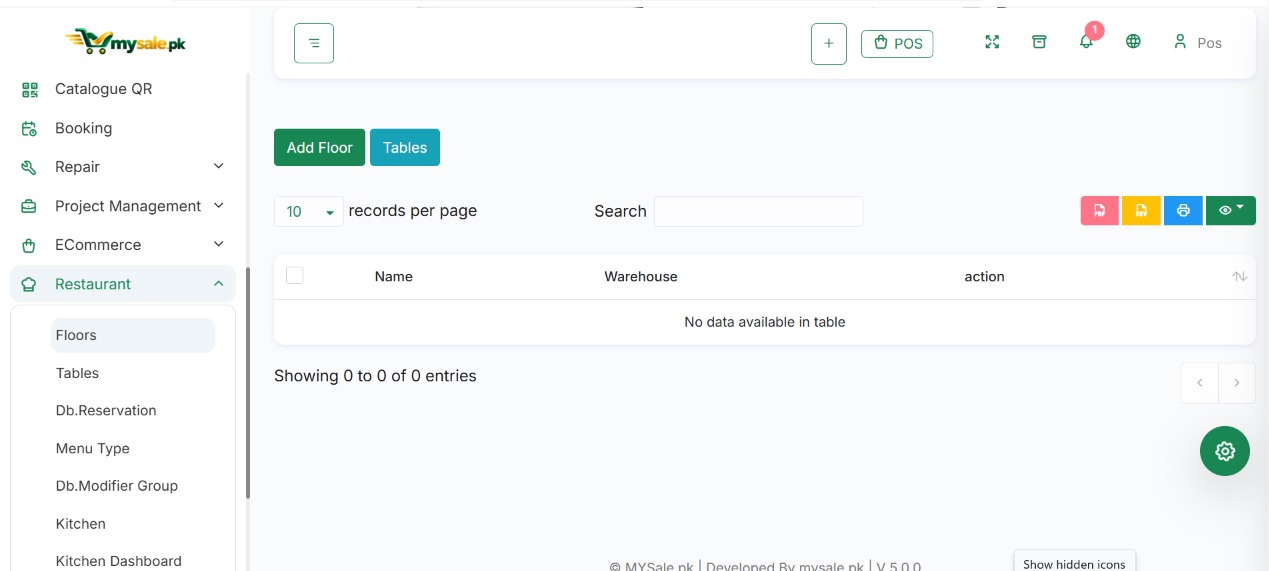
23. Restaurant POS and kitchen workflow

اردو

ریسٹورنٹ POS اور کچن ورک فلو

ریسٹورنٹ فیچرز فعال ہوں تو فرنٹ ڈیسک کے آرڈرز اور کچن کی تیاری کو ایک ساتھ منظم کریں۔

23
ENGLISH GUIDEاردو رہنمائی

Typical dine-in workflow

  1. Confirm tables, floor/area, menu products, modifiers, add-ons and preparation stations are configured.
  2. Open the restaurant POS and select a table or order type.
  3. Add menu items, quantities, modifiers and special instructions.
  4. Send the order to the kitchen/KDS using the available workflow.
  5. Track preparation and order status on the Kitchen Display System, if configured.
  6. When the customer is ready to pay, review the order total and apply supported split payments if needed.
  7. Close the order, issue the receipt and check the sales/stock records.

Order types and supporting features

Depending on the enabled module, workflows may include dine-in, takeaway, delivery, waiter assignment, reservations, kitchen tickets, multiple preparation stations, QR menus and WhatsApp ordering.

Test how modifiers, add-ons, order cancellation and refunds affect stock and reports. For delivery orders, verify the delivery details and status before marking the order complete.

ڈائن اِن آرڈر کا عام طریقہ

  1. Tables، Floor/Area، Menu Products، Modifiers، Add-ons اور Kitchen Stations ترتیب دیں۔
  2. Restaurant POS کھول کر Table یا Order Type منتخب کریں۔
  3. آئٹمز، مقدار، اضافی انتخاب اور خاص ہدایات شامل کریں۔
  4. دستیاب طریقے سے آرڈر Kitchen/KDS کو بھیجیں۔
  5. Kitchen Display پر تیاری اور آرڈر کا اسٹیٹس دیکھیں۔
  6. بل بناتے وقت کل رقم چیک کریں اور دستیاب ہو تو Split Payment استعمال کریں۔
  7. آرڈر بند کرکے رسید جاری کریں اور سیلز/اسٹاک ریکارڈ چیک کریں۔

دیگر فیچرز

  • ماڈیول کے مطابق Dine-in، Takeaway، Delivery، Waiter Assignment، Reservations، Kitchen Tickets، QR Menu اور WhatsApp Ordering دستیاب ہوسکتے ہیں۔
  • Modifiers، Add-ons، آرڈر منسوخی اور Refund کے اسٹاک/رپورٹ پر اثرات ٹیسٹ کریں۔
♨Restaurant POS / KDS screenshotIncluded MySale.pk screenshot
MySale.pk restaurant POS screen
Screenshot 16 · MySale.pk restaurant POS workflow.
ENGLISH

24. Employees, attendance, leave and payroll

اردو

ملازمین، حاضری، چھٹی اور پے رول

People/HRM ماڈیول صرف اس صورت استعمال کریں جب یہ آپ کے اکاؤنٹ میں فعال ہو۔

24
ENGLISH GUIDEاردو رہنمائی

HRM features can include employee records, departments, attendance, leave, holidays and payroll. Exact screens and calculations depend on the installed version and your configuration.

  1. Create departments or staff groups if your setup uses them.
  2. Add employees with accurate identifiers and contact details.
  3. Configure work schedules, holidays and leave policies before recording attendance.
  4. Review attendance entries before running payroll.
  5. Check salary components, deductions, approved overtime/leave and payroll period.
  6. Review payroll output carefully before posting or paying it.
!
Protect employee data

Payroll and personal information should be limited to authorized users. Verify local employment and tax requirements with your qualified adviser before relying on software calculations.

عمل کا بنیادی طریقہ

  1. ملازمین کی پروفائلز بنائیں اور Department یا Job Role درست درج کریں۔
  2. Attendance، Leave اور Holidays کی ترتیبات کمپنی کی پالیسی کے مطابق رکھیں۔
  3. Payroll چلانے سے پہلے تنخواہ، کٹوتیوں اور دیگر متعلقہ معلومات کی تصدیق کریں۔
  4. ایک ٹیسٹ ملازم/مدت کے ذریعے نتیجہ چیک کریں، پھر حقیقی پے رول پر عمل کریں۔
  5. حساس تنخواہ اور ملازم معلومات تک رسائی محدود رکھیں۔
ENGLISH

25. Manufacturing, repairs and projects

اردو

مینوفیکچرنگ، مرمت اور پراجیکٹس

اضافی ماڈیول عام ریٹیل کے علاوہ پیداوار، سروس جابز اور ٹیم کے کام کو سنبھالنے میں مدد دیتے ہیں۔

25
ENGLISH GUIDEاردو رہنمائی

Manufacturing and production

Where production features are available, configure the recipe or bill of materials (BOM) to define component quantities for a finished product. Record production through the supported production workflow, then check that ingredient stock and finished-goods stock changed as expected.

Repair and service jobs

Use repair records for service jobs when enabled. Capture the customer, item/device identifiers, reported issue, work status, used parts, labour/service charges and payment details. Verify any parts used are deducted correctly from inventory and are attached to the intended repair record.

Projects and tasks

Use the project module to organize project records, tasks, assignments and progress if included. Agree team ownership and status meanings before entering work, and keep financial invoices or sales records in the correct dedicated workflow.

  • Test the full module flow before moving active work into the system.
  • Limit edit/delete permissions for completed production, repair, or project records.
  • Review both operational status and associated stock/payment/report effects.
مینوفیکچرنگ اور پیداوار

  • Recipe یا Bill of Materials (BOM) میں تیار ہونے والی چیز کے اجزاء اور مقداریں درج کریں۔
  • منظور شدہ Production Workflow سے پیداوار ریکارڈ کریں۔
  • تصدیق کریں کہ اجزاء کا اسٹاک کم اور تیار مال کا اسٹاک متوقع مقدار میں بڑھا ہے۔

مرمت اور سروس جاب

  • کسٹمر، ڈیوائس/آئٹم کی شناخت، مسئلہ، کام کا اسٹیٹس اور استعمال شدہ پرزے درج کریں۔
  • لیبر/سروس چارجز اور ادائیگی کی تفصیل شامل کریں۔
  • چیک کریں کہ استعمال شدہ پارٹس انوینٹری سے درست کم ہوئے اور صحیح مرمت ریکارڈ کے ساتھ جڑے ہیں۔

پراجیکٹس اور ٹاسکس

  • پراجیکٹ، ٹاسک، ذمہ دار افراد اور پیش رفت کو واضح رکھیں۔
  • پہلے سے طے کریں کہ ٹیم میں اسٹیٹس کے کیا معنی ہوں گے۔
  • مکمل ریکارڈز کی Edit/Delete اجازت محدود کریں اور متعلقہ اسٹاک/ادائیگی کے اثرات چیک کریں۔
ENGLISH

26. Business AI Assistant

اردو

بزنس AI اسسٹنٹ

جہاں یہ سہولت فعال ہو، معاون سے اپنے کاروباری ڈیٹا کے بارے میں دستیاب سوالات پوچھیں۔

26
ENGLISH GUIDEاردو رہنمائی

The Mysale.pk documentation describes a business-focused assistant that can summarize supported data using predefined skills. It is not necessarily a general-purpose chatbot, and the exact skills depend on the installed release and accessible data.

Example questions to try

Selecting an example copies it to your clipboard when browser permissions allow. It does not submit anything to your MySale.pk account.

How to use answers responsibly

  • Confirm the date range and warehouse scope of the answer.
  • Open the related detailed report to verify important amounts.
  • Do not share private customer or employee data outside the authorized business context.
  • Use a normal report or ledger when an auditable, transaction-level record is needed.

مثالی سوالات

  1. آج کی فروخت کا خلاصہ کیا ہے؟
  2. کون سی مصنوعات کم اسٹاک میں ہیں؟
  3. اس عرصے میں سب سے زیادہ فروخت ہونے والی مصنوعات کون سی ہیں؟
  4. کسٹمرز کے کل بقایا جات کتنے ہیں؟
  5. Cash اور Bank کا موجودہ خلاصہ کیا ہے؟

جوابات ذمہ داری سے استعمال کریں

  • جواب میں تاریخ کی حد اور گودام کے دائرہ کار کی تصدیق کریں۔
  • اہم رقم کو متعلقہ تفصیلی رپورٹ سے ملائیں۔
  • نجی کسٹمر یا ملازم معلومات غیر مجاز جگہ پر شیئر نہ کریں۔
  • آڈٹ کے قابل مکمل تفصیل درکار ہو تو عام رپورٹ یا لیجر استعمال کریں۔
ENGLISH

27. Notifications and messaging

اردو

نوٹیفکیشن اور پیغام رسانی

پیغام رسانی کے ذرائع اسی وقت ترتیب دیں جب اکاؤنٹ اور سروس فراہم کنندہ تیار ہوں۔

27
ENGLISH GUIDEاردو رہنمائی

Depending on your setup, supported communication workflows may include email, WhatsApp receipt/order sharing, reminders or system notifications. They may require sender credentials, an approved provider account, templates, and correctly formatted customer contact data.

  1. Identify the exact feature you want to use: invoice email, receipt sharing, order alert or another workflow.
  2. Configure the required provider/sender details in the intended settings page.
  3. Use a test recipient or internal address first.
  4. Confirm delivery status with the email/messaging provider where available.
  5. Check spam folders, phone number formatting and provider restrictions when delivery fails.

Do not place passwords, API secrets or provider tokens in screenshots or public support posts. If the credentials may have been exposed, rotate them.

ابتدائی جانچ

  1. Settings میں Email، WhatsApp، SMS یا Notification کی دستیاب ترتیبات تلاش کریں۔
  2. Provider کی اسناد، Sender Details اور Template کو درست طریقے سے سیٹ کریں۔
  3. ضرورت کے مطابق وصول کنندہ اور پیغام کی زبان چیک کریں۔
  4. ایک ٹیسٹ پیغام بھیجیں اور Delivery Status دیکھیں۔
  5. ای میل، فون نمبر یا API Keys کو عوامی طور پر ظاہر نہ کریں۔
ENGLISH

28. Backup, security and maintenance

اردو

بیک اپ، سیکیورٹی اور مینٹیننس

باقاعدہ دیکھ بھال سیلز، اسٹاک ہسٹری اور کسٹمر معلومات کو محفوظ رکھنے میں مدد دیتی ہے۔

28
ENGLISH GUIDEاردو رہنمائی

Backup routine

  • Take regular database backups and include uploaded files/documents where required.
  • Keep a copy separate from the live application/server.
  • Protect backup files with suitable access controls and encryption where practical.
  • Test restoring a backup into a safe test environment; a backup is only useful if it can be restored.
  • Before a bulk import, update or structural change, take a fresh backup and record the change.

Security basics

  • Use HTTPS for the live site.
  • Keep user access limited and review staff accounts periodically.
  • Do not publish .env files, database credentials, API secrets or license keys.
  • Use the official update process for your installation; do not edit protected updater files.
  • Monitor storage space and server health if you manage the hosting.
  • Configure scheduled tasks/cron only for features whose documentation requires them.

Before updating

  1. Review the release notes and prerequisites.
  2. Back up the database and files.
  3. Apply the update in a test or maintenance window according to the official instructions.
  4. Test login, POS, purchases, reports, integrations and critical modules.
  5. Retain a recovery plan until the update is verified.
!
Never test destructive changes on your only live copy

Use a staging/test environment or a verified backup. Avoid direct database edits unless you have a controlled, version-aware repair procedure.

بیک اپ کا معمول

  1. ڈیٹا بیس کا باقاعدہ بیک اپ بنائیں اور ضرورت کے مطابق اپ لوڈ فائلیں/دستاویزات بھی محفوظ کریں۔
  2. کم از کم ایک بیک اپ لائیو سرور سے الگ محفوظ جگہ پر رکھیں۔
  3. بیک اپ فائلوں پر مناسب رسائی کنٹرول اور جہاں ممکن ہو Encryption لگائیں۔
  4. محفوظ ٹیسٹ ماحول میں Restore کرکے تصدیق کریں کہ بیک اپ کام کرتا ہے۔
  5. Bulk Import، Update یا بڑی تبدیلی سے پہلے نیا بیک اپ لیں۔

سیکیورٹی کے بنیادی اصول

  1. Live سائٹ پر HTTPS استعمال کریں۔
  2. ملازمین کو کم سے کم ضروری اجازتیں دیں اور اکاؤنٹس کا وقتاً فوقتاً جائزہ لیں۔
  3. `.env`، ڈیٹا بیس کریڈنشلز، API Secrets یا License Keys عام نہ کریں۔
  4. اپ ڈیٹ کے لیے آفیشل طریقہ استعمال کریں۔
  5. Hosting خود سنبھالتے ہیں تو ڈسک، سرور صحت اور ضروری Scheduled Tasks چیک کریں۔

اپ ڈیٹ سے پہلے

  1. Release Notes اور Requirements پڑھیں۔
  2. ڈیٹا بیس اور فائلوں کا بیک اپ لیں۔
  3. مناسب Test یا Maintenance Window میں اپ ڈیٹ کریں۔
  4. لاگ اِن، POS، خریداری، رپورٹس اور ضروری انٹیگریشن ٹیسٹ کریں۔
  5. اپ ڈیٹ کی تصدیق ہونے تک Recovery Plan تیار رکھیں۔
ENGLISH

29. Troubleshooting guide

اردو

عام مسائل حل کریں

دوبارہ ٹرانزیکشن کرنے یا ڈیٹا تبدیل کرنے سے پہلے چند بنیادی جانچ کریں۔

29
ENGLISH GUIDEاردو رہنمائی
Product or customer does not appear in search

Check spelling/code, active status, selected warehouse or category filters, and your permissions. Confirm the record was saved and is not hidden by the search filters.

Stock quantity seems incorrect

Check the exact warehouse and product variant. Open the stock ledger and inspect purchases, completed sales, returns, adjustments and transfers within the relevant dates. Check tracked batches/serials separately when applicable.

Sale or purchase was saved but the list looks unchanged

Refresh the list once, clear filters, confirm the date range/status filter, and search by the transaction reference. Avoid submitting the form again before checking whether the first record exists.

Customer or supplier balance does not match

Review posted invoices, received payments, refunds, sale/purchase returns, deposits and opening balances. Use a consistent time period and party filter. Ask the finance administrator to review accounting mappings if journals are involved.

Receipt or invoice will not print

Check the selected printer, printer connection, browser print dialog, paper size, popup restrictions, and invoice layout. Try the preview first and test using a small sample document.

Online payment shows success but no confirmed order/payment

Do not assume settlement based only on the browser page. Check the order status, provider dashboard/transaction reference, callback or webhook logs, and your installed integration's reconciliation workflow.

Page is blank, a menu fails, or the server returns 404/500

Note the URL, timestamp, browser console/network error and exact response. If you manage the server, review application and web-server logs, permissions, routing and recently changed files. Do not expose credentials in shared logs.

Import file is rejected

Re-download the current template. Confirm headings, required fields, dates, number formats, unique codes, unit/category references and row-level errors. Test a small sample before retrying all rows.

Support ticket checklist

  • Store URL and affected module/page.
  • Exact steps that reproduce the problem.
  • Transaction or record reference (remove sensitive customer data where possible).
  • Exact error text and time it occurred.
  • Screenshot with passwords, tokens, phone numbers and private details hidden.
  • Browser/device details and recent changes, if relevant.

عام مسائل کے حل

  • پروڈکٹ سرچ میں نہ آئے تو نام/کوڈ، فعال اسٹیٹس، فلٹر، گودام اور اجازتیں چیک کریں۔
  • اسٹاک غلط ہو تو Product Variant اور Warehouse درست منتخب کرکے Stock Ledger میں Purchase، Sale، Return، Adjustment اور Transfer دیکھیں۔
  • ریکارڈ محفوظ دکھے لیکن فہرست میں نہ ہو تو ایک بار Refresh، فلٹر اور تاریخ/اسٹیٹس چیک کریں؛ دوبارہ Submit کرنے سے پہلے تلاش کریں۔
  • کسٹمر/سپلائر بیلنس میں فرق ہو تو انوائس، ادائیگی، ریفنڈ، واپسی، ڈپازٹ اور Opening Balance کا موازنہ کریں۔
  • رسید پرنٹ نہ ہو تو پرنٹر، Browser Print، پیپر سائز اور Layout چیک کریں۔
  • آن لائن ادائیگی کی تصدیق Provider کے ریکارڈ اور Transaction Reference سے کریں۔
  • 404/500 یا Blank Page کی صورت میں URL، وقت اور مکمل Error محفوظ کریں؛ لاگز میں پاس ورڈ یا راز ظاہر نہ کریں۔
  • Import فیل ہو تو موجودہ ٹیمپلیٹ، کالم، فارمیٹ، منفرد کوڈ اور متعلقہ References چیک کریں۔

سپورٹ کے لیے تیار کریں

  • اسٹور URL اور متاثرہ Module/Page لکھیں۔
  • مسئلہ دوبارہ پیدا کرنے کے مراحل درج کریں۔
  • Transaction/Record Reference اور اصل Error Text شامل کریں۔
  • تاریخ، وقت، براؤزر اور ڈیوائس بتائیں۔
  • اسکرین شاٹ میں پاس ورڈ، ٹوکن اور نجی معلومات چھپائیں۔
ENGLISH

30. Frequently asked questions and glossary

اردو

اکثر پوچھے گئے سوالات اور اصطلاحات

عام سوالات کے مختصر جواب اور کاروباری اصطلاحات کی آسان وضاحت۔

30
ENGLISH GUIDEاردو رہنمائی
Should I add products before purchases?

Yes, create the product catalogue, units and required product tracking settings first. Then select those products when creating a purchase to receive stock.

Does recording a purchase always increase stock immediately?

It depends on the purchase status and your installed workflow. Verify whether the transaction is draft, pending, received or completed, then check the stock ledger.

What is the difference between a sale and a payment?

A sale records the goods/services sold and amount due. A payment records money received against that sale or account. A credit sale may have an outstanding balance after the first payment.

Can I change the currency after I start selling?

Review the implications with your administrator first. Currency settings generally affect future transactions and do not automatically correct historical amounts or exchange rates.

Why can't I see a module?

It may not be included/enabled for the account or your role may not have permission. Ask the administrator to check module activation and role access.

Can I edit or delete a completed transaction?

Use the supported edit, return, refund or reversal workflow, based on status and downstream activity. Some posted records may be restricted for audit or accounting reasons.

SKU / Product code

A unique identifier used to find a product.

POS

Point of Sale: the checkout workflow used to complete customer sales.

Warehouse

A stock location such as a shop, storeroom or branch.

Receivable

Money customers still owe the business.

Payable

Money the business still owes a supplier.

Stock Ledger

A record of inventory movements over time.

Variant

A version of a product, such as a different size or colour.

Reconciliation

Comparing system records with a trusted external or physical record.

اہم سوالات

  1. کیا خریداری سے پہلے پروڈکٹس بنانا چاہییں؟ جی ہاں؛ پہلے پروڈکٹ، یونٹ اور ضروری Tracking Settings مکمل کریں۔
  2. کیا خریداری محفوظ ہوتے ہی اسٹاک بڑھ جاتا ہے؟ یہ Status اور آپ کے ورک فلو پر منحصر ہے؛ Stock Ledger چیک کریں۔
  3. Sale اور Payment میں فرق کیا ہے؟ Sale سامان/سروس اور قابلِ وصول رقم ریکارڈ کرتی ہے؛ Payment موصول شدہ رقم درج کرتی ہے۔
  4. کیا فروخت شروع کرنے کے بعد کرنسی بدل سکتے ہیں؟ پہلے ایڈمن سے اثرات سمجھیں؛ پرانی رقوم اور Exchange Rates خودکار طور پر درست نہیں ہوتیں۔
  5. ماڈیول نظر نہ آئے تو کیا کریں؟ ممکن ہے ماڈیول فعال نہ ہو یا آپ کے Role کو اجازت نہ ہو۔
  6. کیا مکمل ٹرانزیکشن مٹائی جاسکتی ہے؟ Status کے مطابق Return، Refund یا Reversal کا منظور شدہ ورک فلو استعمال کریں۔

اصطلاحات

  • SKU / Product Code: پروڈکٹ ڈھونڈنے کے لیے منفرد شناخت۔
  • POS: Point of Sale، جہاں کسٹمر کی خریداری مکمل کی جاتی ہے۔
  • Warehouse: اسٹاک رکھنے کی جگہ، مثلاً دکان، اسٹور روم یا برانچ۔
  • Receivable: وہ رقم جو کسٹمر نے کاروبار کو دینی ہے۔
  • Payable: وہ رقم جو کاروبار نے سپلائر کو دینی ہے۔
  • Stock Ledger: وقت کے ساتھ اسٹاک کی ہر حرکت کا ریکارڈ۔
  • Variant: ایک ہی پروڈکٹ کی قسم، مثلاً مختلف سائز یا رنگ۔
  • Reconciliation: نظام کے ریکارڈ کو اصل بینک، کیش یا جسمانی ریکارڈ سے ملانا۔
ENGLISH

31. Contact support with the right details

اردو

سپورٹ سے درست معلومات کے ساتھ رابطہ کریں

واضح معلومات فراہم کرنے سے سپورٹ ٹیم کو مسئلہ سمجھنے اور جانچنے میں مدد ملتی ہے۔

31
ENGLISH GUIDEاردو رہنمائی
✉

Before you send a support request

Copy the checklist below and fill it in with the information for your issue. Use your official MySale.pk support contact or the support route provided with your account.

Send your completed request by email to infomysalepk@gmail.com or visit MySale.pk Customer Support.

MySale.pk Support Request
Store URL:
Module / page:
Date and time of issue:
Steps to reproduce:
Exact error message:
Transaction / record reference:
What I expected:
What happened instead:
Browser / device:
Recent changes (if any):
Screenshot attached (with private information hidden):

Never send passwords, database credentials, API tokens, payment secrets, or unmasked customer/employee information in a support request. If remote access is necessary, use an approved private channel and remove access afterward.

سپورٹ درخواست میں یہ معلومات دیں

  • MySale.pk اسٹور URL درج کریں۔
  • متاثرہ Module/Page اور مسئلہ پیش آنے کی تاریخ و وقت لکھیں۔
  • مسئلہ دہرانے کے لیے ہر مرحلہ درج کریں۔
  • اصل Error Message اور Transaction/Record Reference شامل کریں۔
  • آپ کیا توقع کررہے تھے اور اصل میں کیا ہوا، یہ واضح کریں۔
  • براؤزر/ڈیوائس اور متعلقہ تبدیلیوں کا ذکر کریں۔
  • اسکرین شاٹ لگائیں مگر پاس ورڈ، ٹوکن، ادائیگی کے راز یا نجی معلومات چھپا دیں۔

درخواست کہاں بھیجیں؟

حفاظتی نوٹ

  • کبھی بھی Password، Database Credentials، API Tokens یا Payment Secrets سپورٹ درخواست میں نہ بھیجیں۔
  • اسکرین شاٹ میں کسٹمر کی نجی معلومات چھپا دیں۔

Final checklist before going live

Check every item once before staff start relying on the system for real transactions.

لائیو کرنے سے پہلے حتمی چیک لسٹ — حقیقی ٹرانزیکشن شروع ہونے سے پہلے ہر چیز کی تصدیق کریں۔

✓

You’re ready to build a dependable routine. Start with accurate setup, record transactions consistently, and verify the ledgers and reports whenever something looks unusual.

MySale.pk

MySale.pk User Guide · Built for learning and day-to-day operations

This is an independent user-guide template prepared for MySale.pk. It is based on publicly available Mysale.pk documentation and general workflow explanations. Screens, menu labels, features and permissions may differ in your account. Confirm sensitive accounting, tax, payment and server procedures against your installed version and qualified adviser.